
PTIPTV
-
Posts
200 -
Joined
-
Last visited
-
Days Won
16
Content Type
Profiles
Forums
Downloads
Everything posted by PTIPTV
-
 Best Android TV Box Chipsets for 4K Streaming (2026 Buying & Performance Guide) Choosing the right Android TV Box or Streaming Dongle often comes down to one crucial internal component: the System-on-Chip (SoC). The chipset determines how fast your device decodes high-bitrate 4K streams, processes 60FPS sports broadcasts, handles modern video codecs like AV1, and scrolls through massive Electronic Program Gauides (EPG). With so many budget and premium streaming boxes flooding the market, understanding processor differences prevents you from buying underpowered hardware that suffers from overheating and buffering. In this comprehensive 2026 performance breakdown, we compare the leading chipsets from Amlogic, Realtek, and Rockchip to help you choose the best box for your streaming setup. Chipset Comparison & Hardware Capability Matrix Chipset Model Typical Devices AV1 Hardware Decode Ethernet Support Ideal Usage Level Amlogic S905X4 Mecool KM2 Plus, Formuler Z11, Homatics Yes (Native) Gigabit LAN (1000 Mbps) Premium 4K / Heavy Live TV Amlogic S905Y4 ONN 4K Pro, Chromecast with Google TV Yes (Native) 10/100 Mbps or Wi-Fi 6 Mid-Range Streaming Dongles Realtek RTD1319 Formuler Z11 Pro Max / GTV Series Yes (Native) Gigabit LAN High-End Custom Player OS Rockchip RK3528 / RK3318 Budget Boxes (X96, H96 Max series) No / Software Only 10/100 Mbps Entry-Level / Budget Streaming 1. Amlogic S905X4: The Gold Standard for 4K Live Streaming The Amlogic S905X4 remains the most popular and reliable quad-core processor across mid-range and premium Android TV devices in 2026. Performance Highlights: Native AV1 Decoding: AV1 is the next-generation video codec used by major streaming platforms to deliver crystal-clear 4K video using 30% less bandwidth than H.265. HDR10+ & Dolby Vision: Full hardware decoding support for vibrant color depth during movie and series playback. Thermal Efficiency: Operates at low temperatures, virtually eliminating CPU throttling during hours of continuous live sports viewing. 2. Realtek RTD1319: Dedicated Player Performance Realtek chipsets are specially engineered for dedicated media playback devices, such as the top-tier Formuler lineup running MYTVOnline engines. Performance Highlights: Optimized Frame Rate Matching: Provides ultra-smooth frame rate synchronization (AFR) when switching between 50Hz European streams and 60Hz US broadcasts. Low Memory Latency: Exceptionally fast channel zapping times and instant loading of heavy EPG channel directories. 3. Budget Processors (Rockchip RK3528 / RK3318): What to Expect Budget chipsets from Rockchip power low-cost boxes (under $30). While affordable, buyers should be aware of technical limitations when pushing high bitrates. Things to Keep in Mind: Lack of Official Android TV OS: Most Rockchip devices run tablet Android OS, which lacks Google Widevine L1 certification required for official 4K Netflix or Prime Video. Higher Operating Temperatures: These chipsets generate more heat under load, requiring adequate ventilation to prevent micro-stutters during live streams. Key Hardware Buying Tips for 2026 Minimum 2GB / 3GB RAM: Always choose a device with at least 2GB of RAM (3GB or 4GB recommended) to prevent player application crashes when updating EPG guides. Look for Widevine L1 Certification: If you plan on streaming Netflix, Prime Video, or Disney+ alongside your custom media player, ensure the device is DRM Widevine L1 certified. Prioritize Wi-Fi 6 or Gigabit LAN: Live 4K streams require consistent packet delivery. A device with a Gigabit Ethernet port or Wi-Fi 6 chip guarantees network headroom. Frequently Asked Questions (FAQ)
-
How to Optimize Android TV OS for Maximum Performance & Zero-Buffer IPTV Streaming (2026 Guide) While dedicated Android TV devices like the Shield TV, Mecool, or Formuler offer excellent hardware capability, the underlying Android TV operating system can accumulate background caches, memory leaks, and unnecessary system animations over time. These hidden system bottlenecks often result in frame drops during high-bitrate 4K live sports broadcasts, audio desync, and UI latency when loading large EPG guides. In this deep-dive optimization guide, we cover step-by-step system tweaks, developer options, network buffer configs, and cache management techniques to keep your Android TV OS running at peak efficiency. Quick System Optimization Checklist Optimization Area Recommended Setting / Action Expected Performance Benefit System Animations Set Window/Transition scales to 0.5x or Off Faster menu navigation & zero UI lag Background Processes Limit background processes to 2 or 3 max Prevents RAM drops during long live streams Hardware Decoding Force HW/HW+ Video Acceleration Shifts decoding load to GPU, lowering CPU temps Audio Passthrough Enable RAW Audio Passthrough Eliminates audio processing delay on AV receivers Storage Management Clear system & app cache weekly Prevents player crashes when loading 7-day EPGs 1. Tweak Developer Options for Instant UI Speed By default, Android TV OS uses smooth visual transitions and window animations that consume RAM and add artificial delays when switching between apps or opening channel groups. Step-by-Step Configuration: Navigate to Settings > Device Preferences > About. Scroll down to Build and click the Select button on your remote 7 times until you see "You are now a developer!". Go back to Device Preferences and select Developer Options. Adjust the following animation parameters: Window animation scale: Set to 0.5x or Off Transition animation scale: Set to 0.5x or Off Animator duration scale: Set to 0.5x or Off Scroll down to Apps section: Background process limit: Set to Standard limit or At most 3 processes. 2. Force Hardware Video Acceleration (HW/HW+) Standard media players sometimes default to Software (SW) decoding on custom streams, which forces the main CPU to process video frames instead of utilizing the dedicated Mali or Adreno Graphics Processing Unit (GPU). Why This Matters: Software Decoding (SW): High CPU usage, high heat generation, frequent frame drops on 60FPS streams. Hardware Decoding (HW/HW+): Uses dedicated GPU video pipelines, keeps device temperatures below 60°C, and ensures smooth frame delivery. In your player application (such as TiviMate, OTT Navigator, or XCIPTV), always check Settings > Playback > Video Decoder and select Hardware (HW). 3. Manage Storage & Clear EPG Cache Memory An Electronic Program Guide (EPG) with thousands of channels downloads thousands of small database files and poster graphics into your TV box's local storage daily. When storage drops below 1GB, Android TV OS automatically throttles CPU performance to save internal memory. Maintenance Steps: Clear App Cache Regularly: Go to Settings > Apps > See All Apps, select your media player, and click Clear Cache. (Do NOT click Clear Data, or your account credentials will be erased). Set EPG Retention Limit: Configure your streaming player to keep program guide history for no more than 2 days. 4. Network Adapter Tweaks: Ethernet vs. Wi-Fi 6 A fast internet connection can still experience packet loss if the Android system's network stack is misconfigured. Network Tips for Zero Buffering: Disable Energy Efficient Ethernet (EEE): If your TV box has an advanced network menu, turn off energy-saving Ethernet modes that sleep the LAN port during quiet data periods. Use Static IP & Public DNS: Assign a static IP address to your Android TV box inside your router settings, and set primary DNS to 1.1.1.1 (Cloudflare) or 8.8.8.8 (Google) for faster domain name lookups when fetching stream URLs. Frequently Asked Questions (FAQ)
-
Version 1.0.0
1 download
SmartOne IPTV is one of the most widely used and multi-platform media player applications available for Smart TVs, Android TV boxes, Firestick, and mobile devices. Known for its multi-device management web portal, fast channel zapping, and multi-playlist integration, SmartOne provides a seamless interface for streaming live channels, Video on Demand (VOD), and TV series. Whether you prefer logging in via Xtream Codes API credentials, M3U playlist URLs, or activating your playlist remotely using your device's MAC address, SmartOne offers a secure and customizable user experience. Technical App Specifications Specification Details App Name SmartOne IPTV Player Package ID build.smartone_iptv.com Supported Platforms Android TV, Fire TV, Samsung Tizen, LG webOS, Mobile Devices Compatibility Android 5.0 and higher Supported Protocols Xtream Codes API, M3U / M3U8 Playlist, MAC Address Portal Trial Period / Price 14-Day Free Trial (One-time license activation via MAC) Key Features & Highlights Multi-Device Management: Easily manage playlists, change themes, or send custom notifications across all your household TVs using the official web portal. Fast Zapping Engine: Optimized player architecture ensuring quick channel switching and smooth EPG guide updates. Multi-Account & Multi-Playlist: Add, edit, or toggle between multiple Xtream API connections or M3U playlist files within the app. Parental Controls & Category Hiding: Secure sensitive channels with a customizable PIN lock and hide unwanted content categories. Catch-Up & TV Archive: Full support for timeshift and TV catch-up features offered by your IPTV service provider. Multi-Language Support: Fully localized in over 20 languages including Arabic, English, French, Spanish, and German. How to Setup & Activate Playlists on SmartOne IPTV Method 1: Direct Xtream Codes Login (On Device) Launch SmartOne IPTV on your Android device. Select Add Account / Login with Xtream API. Input your server URL, Username, and Password provided by your IPTV vendor. Click Login to load live channels, VOD movies, and EPG schedules. Method 2: Remote MAC Activation (Via Web Portal) Note the MAC Address displayed on the home screen when you launch SmartOne IPTV. Go to the official website upload page ([smartone-iptv.com/upload-playlist](https://smartone-iptv.com/upload-playlist)). Enter your MAC Address, paste your M3U Playlist URL or Xtream credentials, and click Generate / Save. Restart the SmartOne application on your TV to sync the playlist instantly. How to install XAPK: Method 1: Automatic Installation (Easiest) Using an automated installer app handles both the .apk installation and .obb file placement automatically. 1.Download an XAPK Installer App :1 min. Download a trusted installer app like XAPK Installer, ZArchiver, or APKPure App from the Google Play Store or official site. 2.Grant Installation & Storage Permissions :30 sec. Open the installer app and enable "Allow from this source" when prompted so it can install external applications. 3.Select and Install the XAPK :1 min. Locate your downloaded .xapk file within the installer app and tap Install. The tool will unpack and install the app automatically. Method 2: Manual Installation (No Third-Party Installer Needed) If you prefer not to install a third-party installer app, you can manually extract and place the files yourself. 1.Rename the File Extension :30 sec. Open your file manager, locate the .xapk file, and rename its extension from .xapk to .zip (e.g., app.xapk $\rightarrow$ app.zip). 2.Extract the ZIP File :1 min. Unzip the file using your phone's built-in archive extractor or an app like ZArchiver. Inside, you will find an .apk file and an Android/obb folder. 3.Copy the OBB Folder :1 min. Copy the folder found inside the extracted Android/obb/ directory and paste it into your phone's internal storage path: Internal Storage $\rightarrow$ Android $\rightarrow$ obb 4.Install the APK File :30 sec. Return to the extracted folder, tap the .apk file, and tap Install. Download Links Section 📲 Google Play Store (Official): Download SmartOne IPTV on Play Store 🌐 Official Web Activation & Playlist Upload: SmartOne IPTV Web Portal -

0 downloads
MYTVOnline+ IPTV Player for Android (Official Formuler Mobile App) After years of exclusive availability on Formuler Z-Series streaming boxes, the renowned MYTVOnline (MOL) engine is officially available for mobile devices under the name MYTVOnline+. This app brings the same ultra-fast channel zapping, Stalker Portal integration, Xtream Codes API support, and clean EPG layout to Android smartphones and tablets. Technical App Specifications Specification Details App Name MYTVOnline+ IPTV Player Package ID m.formuler.mol.plus Developer ATLAS LINK Inc. / Formuler Official Compatibility Android 7.0 and higher (Phones, Tablets & Android TV) Supported Protocols Stalker Portal, Xtream-Codes API, M3U Playlists Price Free with Limited-Time Premium Features Key Features & Highlights Multi-Protocol Support: Connect via Portal URL (MAC Address / Stalker), Xtream Codes credentials (Username/Password), or M3U Playlist links. Advanced EPG Integration: Full Electronic Program Guide support via XMLTV or direct portal API with Catch-Up (Replay) playback functionality. Picture-in-Picture (PiP) Mode: Keep watching your favorite stream in a mini window while browsing other apps on your phone. Rich VOD Metadata: Posters, cast info, genre filters, and multi-subtitles for Movies and TV Series libraries. Import Formuler Box Settings: Easily transfer your server playlists and favorite groups directly from your Formuler TV box to your mobile phone. How to Setup MYTVOnline+ on Android Download and install the app from Google Play Store or via the official APK Sideload link below. Open MYTVOnline+ and choose your playlist connection type: Xtream Codes: Enter Portal URL, Username, and Password. Stalker Portal: Enter Portal URL and supply your device MAC Address to your provider. M3U Playlist: Paste your .m3u / .m3u8 link. Allow the application to fetch channel groups and EPG data. Enjoy smooth playback with hardware acceleration enabled by default. Download Links Section 📲 Google Play Store (Official): Download on Play Store -
TiviMate vs. iMPlayer (2026 Comparison): Which Premium Player is Worth Your Money? When it comes to high-end, cable-like IPTV players on Android TV and Amazon Fire TV devices, two applications consistently lead the market: TiviMate Premium and iMPlayer Mobile/TV. Both apps offer advanced Electronic Program Guides (EPG), multi-screen layouts, picture-in-picture modes, and custom playlist management. However, key differences in cloud management, cross-platform compatibility, UI responsiveness, and remote management set them apart. In this in-depth 2026 comparison, we evaluate TiviMate against iMPlayer across interface design, cloud playlist sync, multiscreen playback, and overall value to help you decide which player fits your streaming setup. Feature Breakdown & Performance Comparison Feature / Metric TiviMate Premium iMPlayer Premium Supported Operating Systems Android TV, Google TV, Amazon Fire OS Android TV, Fire OS, Mobile, Tablets, Windows Cloud Playlist Sync Local Backup / Manual SMB Export Cloud Management Dashboard (Remote Management) Interface Navigation Ultra-Smooth, Traditional Cable TV Grid Modern Dashboard, Dynamic Themes & Custom Skins Multiscreen Modes Up to 9 streams (Hardware dependent) Up to 4 streams + Custom Grid Layouts DVR / Recording Built-in (Supports local & SMB network drives) Built-in (Requires fast internal or cloud storage) License Management TiviMate Companion App / Account Web Dashboard (Manage codes & devices remotely) 1. Interface & Navigation: Pure Cable TV Feel vs. Modern Customization Both players ditch cheap mobile layouts in favor of TV-first user interfaces, but their design philosophies differ significantly. TiviMate Premium TiviMate mimics a high-end satellite receiver or traditional cable TV box guide. It is celebrated for its ultra-fast channel zapping speeds, instantaneous EPG scrolling, and minimal menu latency. Best For: Users who want a clean, traditional TV grid layout with smooth remote control navigation. iMPlayer Premium iMPlayer provides a modern dashboard interface with extensive skinning and color theme options. It handles Video-on-Demand (VOD) movie/series poster views with better categorization out of the box. Best For: Power users who love visual themes, customized menu styles, and interactive content grids. 2. Multi-Device Management: TiviMate Local vs. iMPlayer Cloud Dashboard The biggest architectural difference between both apps lies in how they handle settings, playlists, and device management across multiple rooms. iMPlayer’s Web Dashboard Advantage iMPlayer features a centralized Web Management Portal. From any web browser or phone, you can log in, edit playlists, hide channel groups, assign custom EPG sources, and sync those changes automatically to every device running iMPlayer in your home. You do not need to manually configure every TV box individually. TiviMate’s Local File System TiviMate stores its configurations locally. While you can export a backup file and restore it on another box via local storage or an SMB network share, it lacks a native real-time cloud management dashboard. 3. Playback Performance & Multiscreen Functionality Both media engines utilize hardware acceleration (HW/HW+) for 4K and 60FPS sports broadcasts. Multiscreen & PIP Capabilities TiviMate: Supports up to 9 simultaneous screens on high-performance devices like the Nvidia Shield TV or ONN 4K Pro. It allows easy audio switching between screens with a single press on the remote. iMPlayer: Offers multi-view capabilities with customizable tile ratios, making it easy to watch two live sporting events side-by-side. Frequently Asked Questions (FAQ) Final Verdict: Which Player Should You Buy in 2026? Choose TiviMate if: You want the absolute fastest, most stable, and authentic cable TV guide experience on your TV or Firestick with minimal setup hassle. Choose iMPlayer if: You manage multiple streaming devices across your home and want cloud syncing, remote playlist management, and custom visual skins.
-
Best Free & Budget IPTV Apps in 2026: IPTV Smart Player vs. XCIPTV vs. Televizo While premium player applications like TiviMate or iMPlayer dominate high-end Android TV setups, many users are looking for fast, reliable, and cost-effective application alternatives that run smoothly across mobile phones, tablets, Firesticks, and budget TV boxes without requiring expensive subscription plans. Finding a capable free or budget media player is essential for organizing live television channels, Video-on-Demand (VOD) libraries, and Electronic Program Guides (EPG). In this 2026 head-to-head comparison, we evaluate the top 3 budget-friendly player applications: IPTV Smart Player, XCIPTV, and Televizo, analyzing their login options, playback performance, interface customization, and mobile/TV cross-compatibility. Feature & Performance Breakdown Feature / Metric IPTV Smart Player XCIPTV Player Televizo IPTV Player Supported Operating Systems Android, iOS / iPadOS, Windows, macOS Android TV, Amazon Fire OS, Android Mobile Android TV, Amazon Fire OS, Android Mobile Cost Structure Free (Optional Pro Features) 100% Free / Ad-Supported Free (Optional One-Time Premium) Login Methods Xtream Codes API, M3U Playlist, Stalker Xtream Codes API Credentials M3U Playlist URL, Xtream Codes API User Interface Style Modern iOS/Glassmorphic Cards Classic Dashboard Tiles & Preview Windows Minimalist List & Compact Grid Layout External Player Support Supported (VLC, MX Player) Supported (VLC, MX Player, ExoPlayer) Supported (Internal ExoPlayer & External) Multi-Playlist Handling Excellent (Fast Switcher) Good (Account Switcher) Excellent (Combined Channel Guide) 1. IPTV Smart Player: Cross-Platform Powerhouse for iOS & Android IPTV Smart Player has rapidly become one of the most downloaded streaming players across both the Apple App Store and Google Play Store thanks to its clean UI and cross-device sync. Key Strengths: True Multi-Platform Support: Runs effortlessly on iPhones, iPads, Apple TV, Android phones, and Android TV boxes. Modern Media Dashboard: Features an intuitive home dashboard that categorizes Recently Viewed channels, Trending VOD movies, and favorite channels. Automated EPG Sync: Automatically downloads XMLTV program guides upon playlist import with zero manual URL configuration required. Limitations: Free Version Ads: The free tier includes occasional banner advertisements between category navigation screens. 2. XCIPTV Player: The Favorite Choice for Android & Firestick XCIPTV is a staple application in the streaming community, known for its iconic dashboard grid layout and built-in diagnostic utilities. Key Strengths: Dashboard Control Panel: Displays Live TV, EPG timelines, VOD releases, and account expiration statuses cleanly on one screen. Built-in Network Speed Test: Features an integrated connection speed tester to verify network throughput before opening high-bitrate 4K sports streams. Backup & Restore System: Allows users to back up their custom settings, favorited channels, and category visibility rules to internal storage. Limitations: No Official iOS Version: Lacks native availability on the Apple App Store, making it an Android-exclusive solution. 3. Televizo: Ultra-Fast, Minimalist & Battery-Efficient For users running older Android TV boxes, mobile phones, or tablets, Televizo offers one of the lightest, fastest, and most resource-efficient player engines on the market. Key Strengths: Minimalist Performance: Consumes very little RAM and battery power, making it ideal for lower-spec streaming hardware. Combined Playlist Mode: Merges multiple M3U playlists into a single, seamless channel guide without creating duplicated category clutter. Parental Controls & Subtitles: Includes granular parental PIN locks and advanced subtitle encoding adjustments for external VOD streams. Limitations: Basic VOD Presentation: Displays VOD movies in simple list formats rather than rich interactive poster walls. Frequently Asked Questions (FAQ) Final Verdict: Which Player App Fits Your Needs? Choose IPTV Smart Player if: You want a sleek, modern application that works seamlessly across both Apple (iOS/macOS) and Android ecosystems. Choose XCIPTV Player if: You stream on an Android TV or Firestick and prefer a dashboard layout with built-in speed test diagnostics. Choose Televizo if: You are running an older device with limited RAM and want the fastest channel zapping speed with zero bloated background features.
-
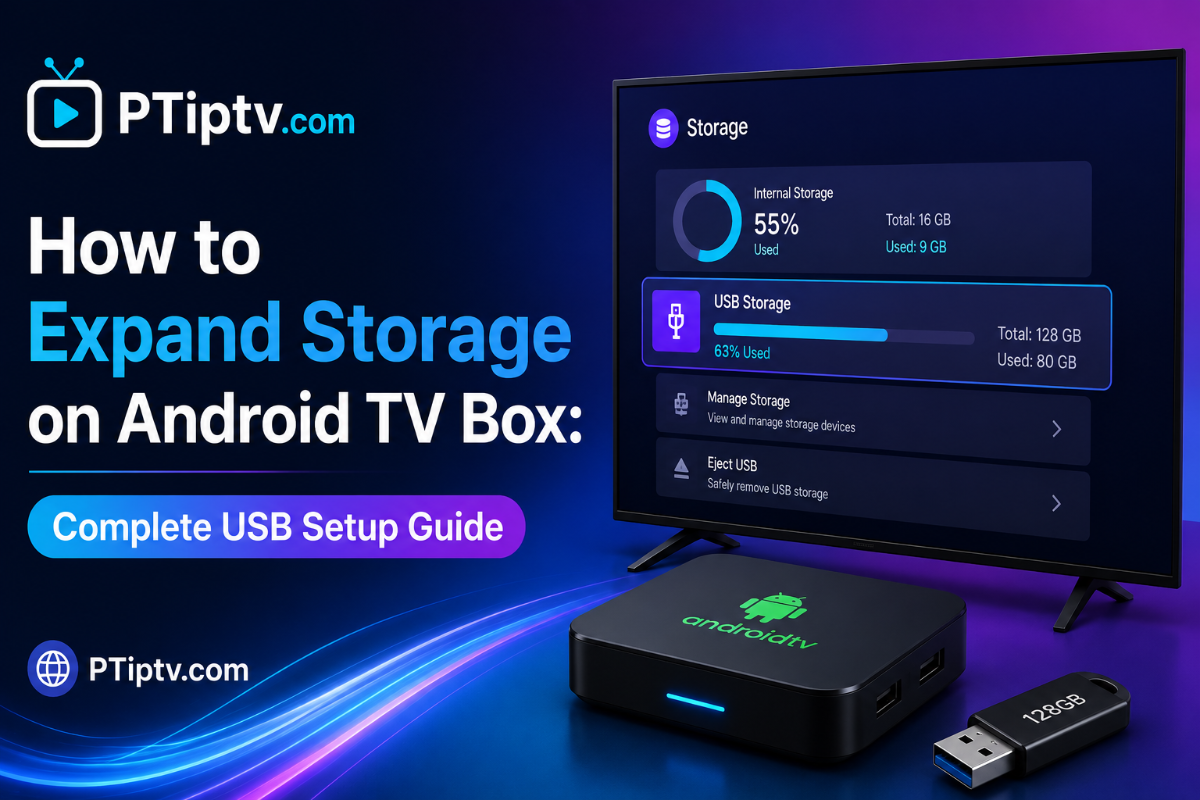
How to Expand Firestick Storage Using a USB OTG Cable for Live TV & DVR Recording (2026 Guide) One of the biggest limitations of Amazon Fire TV devices—especially the Fire TV Stick 4K and Fire TV Stick Lite—is their restrictive 8GB of internal storage. After Fire OS system updates and installing a few essential streaming players, users are often left with less than 2GB of free space. This limited memory can lead to low-storage warning pop-ups, player app crashes during Electronic Program Guide (EPG) updates, and the inability to use background DVR recording features. In this step-by-step 2026 tutorial, we explain how to expand your Firestick's storage capacity using an inexpensive Micro-USB OTG cable, format a USB flash drive correctly, and configure media players like TiviMate to save background recordings directly to external storage. Hardware Required & Compatibility Matrix Hardware Component Recommended Spec / Type Purpose Micro-USB OTG Y-Cable Micro-USB Male to Female + USB Power Splitter Powering the Firestick while adding a full USB 2.0/3.0 port USB Flash Drive / Portable SSD 32GB to 128GB (USB 3.0 or SanDisk Ultra) Storing EPG guides, app caches, and DVR video recordings Formatting File System FAT32 (Required by Fire OS) Native readability by Amazon Fire OS Power Supply Adapter Original Amazon 5V/2A Power Brick Ensuring sufficient power supply to both Firestick and USB drive 1. Hardware Assembly: Connecting the OTG Cable Setting up the physical connection requires zero technical tools. Physical Setup Steps: Unplug the original Amazon power cable from your Firestick. Plug the Micro-USB Male end of the OTG cable directly into the Firestick’s power port. Plug the original Amazon power cable into the Micro-USB Female power port on the OTG Y-splitter. Insert your USB Flash Drive into the standard USB Type-A port on the OTG cable. Plug the Firestick into your TV's HDMI port and connect the power brick into a wall socket. 2. Formatting the USB Drive to FAT32 Amazon Fire OS only recognizes external drives formatted with the FAT32 file system. If your USB drive is formatted to NTFS or exFAT, your Firestick will show a "Drive Unsupported" error. Formatting Options: Option A (Via PC/Mac): Insert the USB drive into your computer, right-click the drive, select Format, choose FAT32 as the file system, and click Start. Option B (Via Firestick Settings): Go to Settings > My Fire TV > USB Drive and select Format to Device Storage or Format to External Storage. 3. Move Installed Player Apps to External USB Storage Once formatted, you can move compatible applications from the limited internal flash memory onto your external USB drive. How to Move Apps: Navigate to Settings > Applications > Manage Installed Applications. Select your installed player application (e.g., XCIPTV or Smarters Player Lite). Select Move to USB Storage. The system will transfer the application files and media assets, freeing up internal system storage for OS updates. 4. Configure DVR Recording Paths in Media Players To record live television broadcasts, sports events, or movies without filling up your Firestick’s internal memory, you must direct the recording path to your connected USB drive. Setting Up Recording Path in TiviMate: Open TiviMate and open Settings. Select Recording > Recording Folder. Choose Select Folder > Select Storage / External USB Drive. Create a new folder named IPTV_Recordings and confirm. You can now schedule live series or match recordings directly to your external USB storage without memory limits. Frequently Asked Questions (FAQ) Summary Setup Checklist Purchase a Micro-USB OTG Y-splitter cable. Format your USB flash drive to the FAT32 file system. Use the original Amazon power block to supply sufficient amperage. Move heavy applications to USB storage via Manage Installed Applications. Set custom recording directory paths inside your media player settings.
-
How to Setup & Optimize Any Amazon Firestick for IPTV in 2026 (Complete Guide) Amazon Fire TV Sticks—including the Fire TV Stick 4K, 4K Max (2nd Gen), and Fire TV Cube—are among the most popular media streaming devices in the world. Their powerful hardware, low price point, and 4K HDR capabilities make them an ideal choice for cord-cutters. However, because Fire OS is a heavily customized Amazon ecosystem, setting up your device for third-party player applications, EPG caching, and smooth live streaming requires a few essential optimization tweaks. In this step-by-step 2026 guide, we walk you through enabling Developer Options, installing essential utility applications, optimizing memory usage, and disabling background Amazon bloatware for maximum streaming performance. Step-by-Step Setup & Optimization Matrix Optimization Phase Primary Goal Key Setting / App Required Phase 1: Developer Access Enable third-party app installations Developer Options > Unknown Sources Phase 2: App Sideloading Install custom players and utility tools Downloader App (Code System) Phase 3: Privacy & Bloatware Stop background tracking & free CPU resources Preferences > Privacy & Data Monitoring Phase 4: Player Tuning Eliminate stream buffering & audio lag Force Hardware (HW) Acceleration Phase 5: Storage Maintenance Prevent EPG cache memory crashes Clear App Cache / USB OTG Expansion 1. Enable Developer Options on Fire OS 8 / Fire OS 7 Amazon recently updated Fire OS to hide the Developer Options menu by default on modern Firestick devices. Enabling this menu is required to install third-party player applications. Step-by-Step Guide: From your Firestick Home screen, navigate to Settings (Gear Icon). Select My Fire TV (or Device & Software). Click on About. Highlight your device name (e.g., Fire TV Stick 4K Max) and press the Select button on your remote 7 times continuously. You will see a notification stating: "No need, you are already a developer." Press the Back button once; you will now see Developer Options listed under My Fire TV. Open Developer Options and turn ON both ABD Debugging and Install Unknown Apps (or Apps from Unknown Sources). 2. Install the Downloader App & Utility File Managers To install third-party players like TiviMate, XCIPTV, or OTT Navigator, you need a dedicated downloader utility. Quick Downloader Installation: Go to the Find / Search tab on the home screen. Search for Downloader and install the orange Downloader app by AFTVnews. Open Downloader, grant storage permissions, and enter your player application's shortcode or direct URL into the address bar. Once downloaded, click Install, then delete the installation .apk file to save internal storage. 3. Disable Background Amazon Tracking & Video Autoplay Out of the box, Fire OS runs multiple background telemetry services and autoplays sponsored video trailers on the home screen. These processes consume CPU cycles and valuable Wi-Fi bandwidth. Recommended System Tweaks: Turn Off Featured Autoplay: Go to Settings > Preferences > Featured Content. Turn OFF both Allow Video Autoplay and Allow Audio Autoplay. Disable Privacy Data Tracking: Go to Settings > Preferences > Privacy Settings. Turn OFF Device Usage Data, Collect App Usage Data, and Interest-Based Ads. Disable Data Monitoring: Go to Settings > Preferences > Data Monitoring and turn it OFF. 4. Fine-Tune Firestick Player Settings for Zero Buffering After installing your preferred media player (such as TiviMate or Smarters Player Lite), configuring its playback engine prevents buffering during live sports broadcasts. Essential Player Tweaks: Force Hardware Video Decoding: Set video decoding to Hardware (HW) or HW+ in your player settings. This utilizes the Firestick’s dedicated MediaTek processor rather than overloading the software CPU. Change Stream Format to HLS: In your playlist connection settings, change the output format from MPEG-TS (.ts) to HLS (.m3u8). HLS dynamically adjusts packet buffers during temporary Wi-Fi drops. Set Frame Rate Matching (AFR): Enable Auto Frame Rate Matching inside your player app settings to eliminate video micro-stuttering when switching between 50Hz (European broadcasts) and 60Hz (US broadcasts). 5. Manage Internal Storage & EPG Cache Firesticks feature limited internal storage (8GB on standard models, 16GB on 4K Max). Running out of storage causes player applications to force-close when downloading Electronic Program Guides (EPG). Storage Maintenance Tips: Clear App Cache Periodically: Go to Settings > Applications > Manage Installed Applications, select your player app, and click Clear Cache (do not click Clear Data, as this will reset your login details). Limit EPG Retention: Inside your player settings, set EPG auto-update to keep program data for a maximum of 1 or 2 days. Use USB OTG Expansion: On Firestick 4K Max devices, connect a micro-USB OTG cable to attach an external USB flash drive formatted to FAT32 for local DVR recording and extra storage space. Frequently Asked Questions (FAQ) Summary Checklist for Maximum Firestick Speed Enable Developer Options and turn ON Unknown Sources. Disable Featured Video Autoplay and Data Tracking in Preferences. Delete downloaded .apk installer files after installing your apps. Force Hardware Acceleration (HW) inside your media player settings. Keep EPG history retention to 1–2 days max to save internal storage.
-
Best IPTV Apps & Setup for Samsung, LG & Sony Smart TVs (No Buffering) Investing in a high-end Smart TV—whether it's a Samsung (Tizen OS), LG (webOS), or Sony (Google/Android TV)—is great, but setting up IPTV on these platforms without lagging, audio sync issues, or app crashes can sometimes be frustrating. In this exclusive guide, we break down the fundamental operating system differences, list the absolute best IPTV applications for each TV model, provide crucial anti-buffering settings, and answer the most frequently asked questions. 📺 1. OS Differences: Samsung vs. LG vs. Sony Before selecting an application, you must understand your TV’s native ecosystem: Samsung (Tizen OS): Uses a closed proprietary store. It does not support direct .apk file installations. You must rely on store-approved apps or developer mode. LG (webOS): Closed ecosystem tailored for smooth navigation. App availability is limited compared to Android, but top-tier players are readily available in the LG Content Store. Sony (Google/Android TV): The most flexible system. Offers full access to the Google Play Store and supports sideloading third-party .apk files via apps like Downloader. 🛠️ 2. Top IPTV Applications by OS 🔴 For Samsung & LG Smart TVs IBO Player Pro: Currently the most reliable player for Samsung/LG. Fast channel switching, excellent EPG support, and subtitle rendering. IPTV Smarters Pro / Lite: Free, easy to configure via Xstream Codes API, and ideal for basic everyday streaming. Flix IPTV: Highly stable, sleek UI, supports external video players and buffer size customizations. Smart ONE IPTV: A modern alternative with clean category navigation and multi-playlist management. 🔵 For Sony Smart TVs (Google / Android TV) TiviMate IPTV Player (Top Pick): Unrivaled performance, TV-style EPG interface, catch-up support, and multi-view capabilities. XCIPTV Player: Clean layout, fast VOD loading speed, and native parental controls. IPTV Smarters Pro (Android version): Feature-rich and supports direct Xtream Codes / M3U logins. 📊 3. Feature Comparison Table App Name Platform Support License Type Speed & Stability Overall Rating TiviMate Sony / Android TV Paid (Free Trial) ⚡⚡⚡⚡⚡ (Outstanding) ⭐⭐⭐⭐⭐ IBO Player Pro Samsung, LG, Sony One-time Activation ⚡⚡⚡⚡☆ (Very Fast) ⭐⭐⭐⭐½ Flix IPTV Samsung, LG, Sony One-time Activation ⚡⚡⚡⚡ ⭐⭐⭐⭐ IPTV Smarters All Platforms Free ⚡⚡⚡ ⭐⭐⭐⭐ ⚡ 4. How to Fix Buffering & Freezing on Smart TVs Use Ethernet Over Wi-Fi: Wireless signals suffer from local interference and latency spikes. Always connect an RJ45 Ethernet cable directly to your TV. Clear App Cache Regularly: Smart TV memory (RAM/Storage) is limited. Periodically clear the app cache from your TV settings menu. Change Buffer Size: In apps like Flix IPTV or TiviMate, increase the buffer size to Medium (2–5 seconds) to absorb network jitter. Restart Your Router: Reboot your modem/router weekly to clear stale DNS entries and release dynamic IP leases. ❓ 5. Frequently Asked Questions (FAQ) Feel free to drop your questions or app recommendations below in the thread!
-
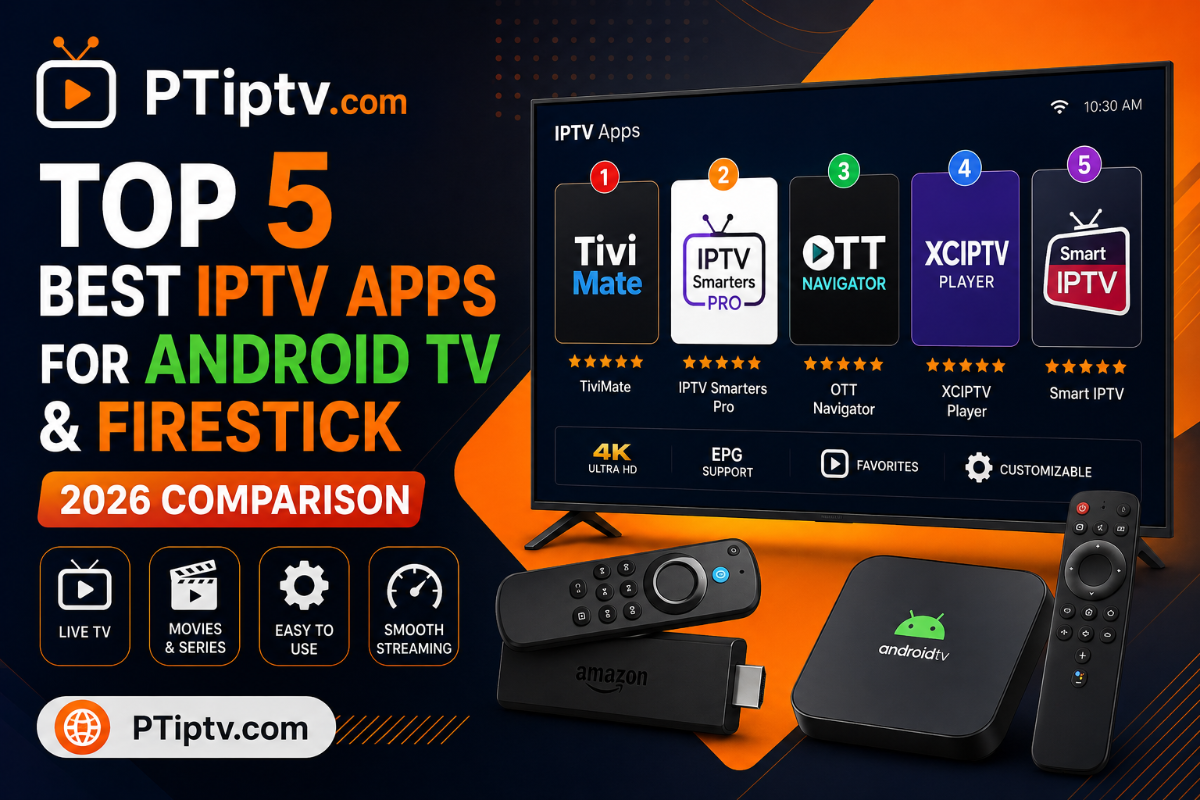
Top 5 Best Android TV Boxes in 2026: Buyer’s Guide & Performance Review While smart TVs come with built-in app ecosystems, dedicated Android TV boxes offer significantly higher processing power, expandable storage, superior cooling, and unrestricted sideloading freedom. Whether you need a high-end streaming box for 4K live sports, lossless home theater audio passthrough, or a budget-friendly media hub for a secondary room, choosing the right Android hardware determines your viewing stability. In this comprehensive 2026 guide, we break down the top 5 Android TV boxes, evaluating their chipset performance, video codec support, network interfaces, and real-world media player compatibility. Quick Comparison Matrix Box Model Operating System Storage / RAM Network Interfaces Best Standout Feature Formuler Z11 Pro Max Android 11 32GB eMMC / 4GB DDR4 Gigabit LAN / Wi-Fi 6 Native MYTVOnline 3 App NVIDIA Shield TV Pro Android TV OS 16GB / 3GB Gigabit LAN / Wi-Fi 5 AI 4K Upscaling & Lossless Audio Mecool KM2 Plus Deluxe Android TV 11 32GB / 3GB 100M LAN / Wi-Fi 6 Netflix 4K & Dolby Vision Certification Ugoos AM8 Pro Android 11 64GB / 8GB LPDDR4X Gigabit LAN / Wi-Fi 6E Amlogic S928X-J Powerhouse Onn Google TV 4K Pro Google TV 32GB / 3GB Built-in 10/100 Ethernet / Wi-Fi 6 Best Ultra-Budget Hardware 1. Formuler Z11 Pro Max: The Dedicated Live TV & Portal Champion Formuler Z11 Pro Max is built from the ground up for users whose primary media focus is live television navigation, EPG tracking, and portal streaming. Key Strengths: MYTVOnline 3 Engine: Provides the fastest EPG loading speeds, seamless picture-in-picture (PiP) multi-channel viewing, and effortless track switching. Modern Codec Support: Natively decodes AV1, HEVC (H.265), and VP9, saving bandwidth without sacrificing video quality. Wi-Fi 6 Connectivity: Features a 2x2 MIMO Wi-Fi 6 module for fast wireless throughput alongside its physical Gigabit Ethernet port. Limitations: Official VOD App Restrictions: Not certified for official 4K Netflix playback due to licensing limits on custom Android builds. 2. NVIDIA Shield TV Pro: The Home Theater & AI Upscaling Beast Despite its established hardware design, the NVIDIA Shield TV Pro remains unmatched in processing power and audio passthrough features. Key Strengths: Real-time AI 4K Upscaling: Sharpens standard 720p or 1080p live streams into clear 4K resolution using its Tegra X1+ GPU. Lossless Audio Passthrough: Supports full passthrough for high-end audio formats including Dolby TrueHD, DTS:X, and Dolby Atmos to AV receivers. Unrestricted Android TV Ecosystem: Easily runs heavy media applications, custom player skins, and local media servers like Plex. Limitations: Wi-Fi 5 Wireless: Lacks native Wi-Fi 6 support, making its physical Gigabit Ethernet port the preferred connection method for high-bitrate streaming. 3. Mecool KM2 Plus Deluxe: The Fully Certified All-Rounder The Mecool KM2 Plus Deluxe bridges the gap between pure Android media boxes and officially certified streaming devices. Key Strengths: Full Official Certifications: Officially licensed for 4K Netflix, Prime Video, and Disney+ with full Dolby Vision and Dolby Atmos support. Expanded Storage: Includes 32GB internal storage and 3GB RAM for storing large app caches and EPG guide data. Wi-Fi 6 Performance: Delivers fast wireless streaming speeds across dual-band networks. Limitations: 100M Ethernet Port: The physical Ethernet port is capped at 100Mbps (though Wi-Fi 6 speeds easily surpass this limit). 4. Ugoos AM8 Pro: Raw Hardware Power for Advanced Users For users looking for sheer processing speed and custom firmware options, the Ugoos AM8 Pro represents the pinnacle of raw Android hardware. Key Strengths: Amlogic S928X-J Chipset: Features an 8GB LPDDR4X RAM configuration capable of running heavy video decoding pipelines without overheating. Wi-Fi 6E Support: Works on the 6GHz wireless band to eliminate network congestion. Advanced System Settings: Offers deep system-level controls including root access toggles, SAMBA server setup, and frame rate auto-matching. Limitations: Requires Manual Configuration: Best suited for tech-savvy users who enjoy tweaking settings and installing custom launcher setups. 5. Onn Google TV 4K Pro: Best Budget Desktop Streaming Hub Walmart's Onn 4K Pro brings premium box features—such as 32GB storage, a USB 3.0 port, and a hands-free speaker hub—to a budget-friendly price point. Key Strengths: Unbeatable Price-to-Specs Ratio: Offers 32GB storage, 3GB RAM, and a built-in Ethernet port at half the price of high-end competitors. Clean Google TV OS: Runs an official Google TV interface with seamless Play Store access and easy APK sideloading. Find My Remote Feature: Includes a physical button on the main unit that sounds a chime on the remote control when misplaced. Limitations: Basic Remote Layout: Lacks dedicated shortcut keys for custom portal management found on premium boxes like Formuler. Frequently Asked Questions (FAQ) Final Verdict: Which Box Belongs in Your Setup? Choose Formuler Z11 Pro Max if: Your primary focus is live TV browsing, MAC-based portal navigation, and using the MYTVOnline 3 interface. Choose NVIDIA Shield TV Pro if: You have a home theater AV receiver and want real-time AI 4K upscaling for low-resolution live streams. Choose Mecool KM2 Plus Deluxe if: You want a fully certified device that handles both custom IPTV players and official 4K Netflix/Dolby Vision streams. Choose Onn Google TV 4K Pro if: You want a high-performance streaming hub with 32GB storage and a USB 3.0 port on a budget.
-
Best Smart TV IPTV Apps in 2026: Smarters Player Lite vs. IBO Player vs. XCIPTV While dedicated Android TV boxes offer raw processing power, many users prefer streaming directly on their LG webOS, Samsung Tizen, or Android Smart TVs using lightweight television applications. Smart TV app stores have evolved significantly, offering hardware-accelerated playback and clean Electronic Program Guide (EPG) grids without requiring external streaming hardware. In this comprehensive 2026 review, we analyze the top 3 Smart TV application solutions: Smarters Player Lite, IBO Player, and XCIPTV, evaluating their playback speed, parental controls, playlist format compatibility, and ease of navigation. Quick Features & Compatibility Comparison Feature / Aspect Smarters Player Lite IBO Player XCIPTV Player Supported OS Platforms LG webOS, Samsung Tizen, iOS, Android TV LG webOS, Samsung Tizen, Fire OS, Android TV Android TV, Fire OS (Android-based) Activation Model Free (Optional In-App Premium Upgrade) Paid Application (7-Day Free Trial) Free / Custom Branded Skins Primary Login Method Xtream Codes API / M3U URL / Portal MAC Address Activation Portal Xtream Codes API Credentials Built-in Speed Test Included Not Included Included VOD Subtitle Handling Excellent (Custom Font & Encoding) Good (Hardware Audio/Subtitle Tracks) Excellent (ExoPlayer Engine) User Interface Layout Multi-Panel Category Cards Sleek Minimalist List / Grid View Dashboard Tiles & Preview Windows 1. Smarters Player Lite: The Universal Multi-Platform Favorite Smarters Player Lite remains one of the most recognized application interfaces globally. Available natively across LG Content Store, Samsung Smart Hub, Apple App Store, and Google Play, it provides a unified experience across all screen sizes. Key Strengths: Xtream Codes API Integration: Parses Xtream API credentials into distinct Live TV, VOD Movies, and TV Series categories automatically. Built-in Player Options: Allows users to toggle between built-in native hardware players and external players like VLC or MX Player on supported devices. Master Search & Parental Lock: Features unified searching across all categories alongside PIN-protected parental controls per genre. Limitations: Samsung/LG Restrictions: Certain video audio pass-through formats (like DTS or EAC3) may be restricted by specific Smart TV manufacturer codecs. 2. IBO Player: Fast, Lightweight & MAC-Activated IBO Player has become the premier choice for LG webOS and Samsung Tizen owners looking for maximum channel zapping speed and zero UI lag. Key Strengths: MAC Address Cloud Portal: Playlists are added remotely via the application's website using the TV's unique Device MAC Address and Key, eliminating tedious typing using a remote control. Lightning-Fast Navigation: Engineered specifically for lower-RAM Smart TV operating systems, providing smooth channel scrolling with zero buffering delays. Multiple Player Engines: Features hardware acceleration toggles for 4K video streams. Limitations: One-Time Activation Fee: Requires a small one-time app license activation fee per device after the initial 7-day trial period. 3. XCIPTV Player: Feature-Rich Dashboard Layout XCIPTV is a popular choice for Android-based Smart TVs, Google TVs, and Fire TV devices, featuring a modern dashboard interface with built-in speed test utilities. Key Strengths: Dashboard Design: Displays Live TV, EPG schedules, VOD releases, and account expiration statuses directly on the main home screen. Backup & Restore: Allows users to back up their customized settings, favorite channel lists, and EPG configurations directly to local device storage. Built-in Speed Test: Includes an integrated network speed analyzer to verify connection stability before streaming high-bitrate 4K content. Limitations: Limited Availability on Proprietary OS: Not natively available on official Samsung Tizen or LG webOS app stores. Frequently Asked Questions (FAQ) Final Verdict: Which App Should You Choose? Choose IBO Player if: You own an LG or Samsung Smart TV and want an ultra-fast, lightweight app managed via a web portal. Choose Smarters Player Lite if: You want a clean, familiar interface across all your devices (TV, mobile, and tablet) with comprehensive category management. Choose XCIPTV if: You run an Android-based TV system and prefer a dashboard layout with built-in speed diagnostics.
-
Top 3 IPTV Players in 2026: TiviMate vs. OTT Navigator vs. iMPlayer Finding a reliable player application is just as critical as having a high-speed internet connection. Since raw stream playlists (M3U or Xtream API credentials) lack native playback interfaces, dedicated IPTV players serve as the engine that organizes raw media streams into a clean, intuitive, cable-like Electronic Program Guide (EPG). In 2026, three powerhouse applications dominate the Android TV, Google TV, and Smart TV ecosystems: TiviMate, OTT Navigator, and iMPlayer. While all three excel at converting IPTV stream codes into organized TV schedules, they cater to distinctly different user bases. In this comprehensive review, we analyze their user interfaces, customizability, playback performance, recording features, and multi-playlist management to help you choose the best player for your streaming setup. Quick Comparison Matrix Feature / Capability TiviMate IPTV Player OTT Navigator IPTV iMPlayer IPTV Primary Focus Minimalist Cable Box UI Maximum Customization & Analytics Cloud Management & Hybrid Layouts User Interface Style Traditional Satellite/Cable EPG Highly Modular & Widget-Based Modern Card Layouts & VOD Wall Platform Availability Android TV / Fire OS Only Android TV, Android Mobile & Tablets Android TV, Android Mobile & iOS Multi-Screen Support Up to 4 Live Streams Up to 9 Live Streams Up to 4 Live Streams Remote Management Manual Backup / Local Export Export/Import Configuration Files Web-Based Cloud Console VOD Metadata Presentation Clean & Basic Lists Rich Filters, Studio Tags & Categories Advanced IMDb Cards & Trailers EPG Source Merging Excellent (Custom EPG Mapping) Superior (Auto-Match & Manual Override) Excellent (Multi-Source Sync) 1. TiviMate IPTV Player: The Gold Standard for TV Remote Navigation TiviMate remains the benchmark against which all other Android TV streaming players are measured. Built exclusively for television screens navigated via a physical remote control, TiviMate delivers an experience virtually indistinguishable from premium satellite receivers. Key Strengths: Instant Zapping Speed: TiviMate’s internal player pipeline provides unmatched channel switching speeds with zero visual stutter or audio lag. Streamlined Grid EPG: The Electronic Program Guide is exceptionally clean. Users can easily customize timeline heights, font scaling, channel logo positions, and color accents without feeling overwhelmed by complex settings menus. Background Scheduled DVR: Features an ultra-reliable recording engine. You can schedule individual broadcasts or recurring series recordings directly to a connected USB flash drive, local storage, or Network-Attached Storage (NAS). Limitations: TV-Only Architecture: TiviMate is designed strictly for Android TV, Google TV, and Amazon Fire OS. It lacks touch-screen optimization for mobile phones or tablets. No Remote Web Management: Playlist setups, category organization, and parental controls must be executed directly on the TV device using your remote. 2. OTT Navigator IPTV: The Power User's Swiss Army Knife If TiviMate represents minimalist elegance, OTT Navigator represents complete functional power. Designed for tech enthusiasts who want total control over stream codecs, EPG matching logic, and network buffers, OTT Navigator is arguably the most feature-dense player application available. Key Strengths: Granular Customization: Virtually every aspect of the display can be adjusted—from channel grouping logic, filter rules, and audio track prioritization to codec rendering (ExoPlayer vs. System Native). Advanced Multi-Screen: Supports viewing up to 9 live streams simultaneously on high-performance devices like the NVIDIA Shield TV or Formuler boxes. Universal Platform Support: Works seamlessly across Android TV boxes, smartphones, and tablets with dedicated touch control profiles. Smart Stream Failover: Can automatically switch to an alternative channel source if the primary server stream encounters buffering or downtime. Limitations: Steep Learning Curve: The extensive configuration menus can feel intimidating for non-technical users or family members who just want to watch TV. Default Interface Clutter: Out of the box, the default UI layout requires manual tweaking to achieve a sleek living room aesthetic. 3. iMPlayer IPTV: Cloud Management & Modern Media Aesthetics iMPlayer has surged in popularity by bridging the gap between traditional live television browsing and modern Video-on-Demand (VOD) movie streaming applications like Netflix or Stremio. Key Strengths: Web-Based Cloud Dashboard: iMPlayer’s headline feature is its Web Cloud Console. You can log into your account via a web browser on your PC or phone to manage playlists, edit channel groups, add EPG links, and sync settings across all your registered household devices instantly. Cinematic VOD Presentation: Transforms VOD movie and series libraries into beautiful poster grids complete with IMDb ratings, cast overviews, movie trailers, and episode tracking. Cross-Platform Ecosystem: Fully supports Android TV, Fire OS, Android Mobile, and iOS devices with automated cloud sync. Limitations: Higher Hardware Demands: Running the app's heavy animations, high-resolution poster artwork, and multi-window transitions requires a capable TV box to prevent UI frame drops. Feature-by-Feature Deep Dive A. Electronic Program Guide (EPG) Handling TiviMate: Offers the cleanest timeline presentation. It allows manual assignment of EPG sources per channel and supports merging multiple XMLTV files effortlessly. OTT Navigator: Features superior automated EPG parsing. If a channel name slightly differs from the EPG source, its internal matching algorithm accurately resolves the discrepancy. iMPlayer: Displays clean EPG grids while adding animated progress bars and quick channel preview windows in the upper corner. B. Video on Demand (VOD) Performance iMPlayer wins comfortably in this category thanks to its rich media cards, trailer integration, and movie poster aesthetics. TiviMate handles VOD playback reliably, but presents titles in basic list/folder formats rather than rich media walls. OTT Navigator provides extensive sorting rules (by release year, genre, rating, or addition date) but requires visual configuration to match iMPlayer’s polished look. Frequently Asked Questions (FAQ) Final Verdict: Which Player Should You Install? Choose TiviMate if: You want an ultra-fast, clean, cable-like interface dedicated solely to living room TV screens, where channel zapping speed and reliable local DVR recording are your top priorities. Choose OTT Navigator if: You are a power user who loves fine-tuning technical settings, needs advanced EPG auto-matching, or wants to run up to 9 streams simultaneously. Choose iMPlayer if: You want the convenience of managing your playlists remotely via a web browser, demand rich movie/series poster layouts, or need app synchronization across TV, mobile, and iOS devices.
-
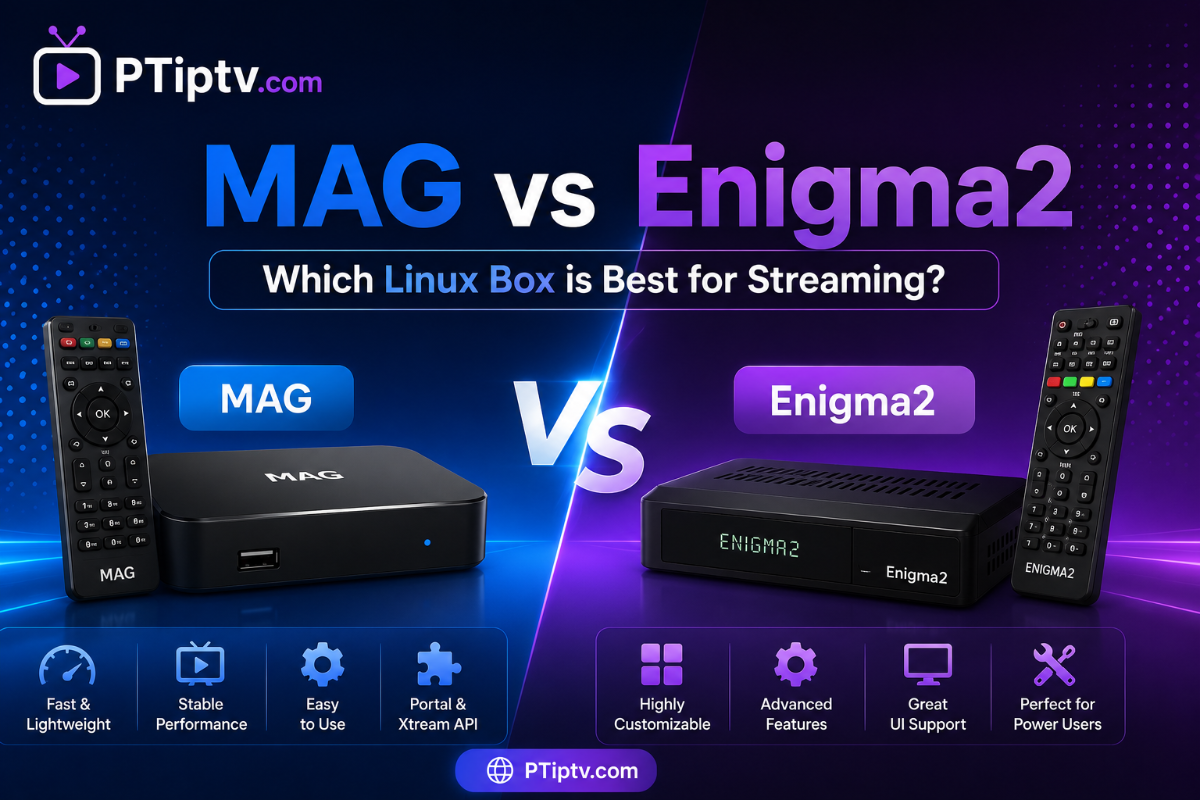
MAG Boxes vs. Enigma2 Linux Receivers: Which Is Best for IPTV in 2026? For broadcast traditionalists and satellite hardware enthusiasts, standalone Linux-based set-top boxes remain the ultimate choice for live TV playback. Two distinct hardware architectures dominate this space: Infomir MAG Boxes (like the MAG540 and MAG520) and Enigma2 Linux Receivers (like Zgemma, Octagon, VU+, and Dreambox). Unlike mainstream Android TV boxes, both MAG and Enigma2 devices bypass complex Android application layers in favor of lightweight Linux firmware designed specifically for low-latency channel zapping and direct Stalker portal/Xtream connections. In this detailed 2026 comparison, we evaluate both platforms across portal performance, customization, tuner integration, and ease of setup. Hardware & Operating System Overview Feature / Aspect Infomir MAG Boxes (e.g., MAG540) Enigma2 Linux Receivers (e.g., Zgemma / Octagon) Operating System Linux (Ministra / Stalker Middleware) Open-Source Linux (OpenATV / OpenPLi / OpenHDF) Primary Focus Dedicated Stalker / MAC-based IPTV Hybrid Satellite/Cable + IPTV Middleware Setup Complexity Very Easy (Plug and Play) Advanced (Requires flashing & plugins) Customization Low (Locked Manufacturer Firmware) Extremely High (Skins, plugins, and custom scripts) Hardware Tuners No Native Satellite Tuners DVB-S2X, DVB-T2/C Tuner Support Channel Zapping Speed Extremely Fast (Instant Portal Loading) Extremely Fast (Hardware Demuxing) Key Differences Breakdown 1. Middleware & User Interface MAG Boxes: Built specifically to connect directly to provider Stalker Portals using the device's unique MAC address. The user interface resembles a traditional digital cable box, offering instant channel switching, categorized EPG guides, and interactive portal menus without requiring third-party apps. Enigma2 Receivers: Powered by open-source community firmware such as OpenATV or OpenPLi. IPTV streams are integrated into native channel bouquets alongside satellite/cable channels using plugins like Xstreamity, Jedi Maker Xtream, or Enigma2 IPTV bouquets. 2. Customization & Plugin Ecosystem MAG Boxes: Offer a locked, stable ecosystem with minimal room for customization. What you see is what you get—making them reliable and virtually immune to user software corruption. Enigma2 Receivers: Feature an extensive plugin repository. Users can install custom skins, channel list editors, automated EPG importers (EPGImport), softcams, and network mounting scripts to access local NAS drives. 3. Hardware Versatility & Hybrid Streaming MAG Boxes: Function strictly as IP-based streaming receivers over Ethernet or Wi-Fi. Enigma2 Receivers: Excel as hybrid media receivers. You can connect a satellite dish (DVB-S2X) or terrestrial antenna (DVB-T2) while running live IPTV playlists simultaneously within the same unified channel guide. Frequently Asked Questions (FAQ) Verdict: Which Box Belongs in Your Setup? Choose a MAG Box if: You want a simple, plug-and-play experience using MAC-address authentication. You prefer a locked, reliable cable-like interface with zero maintenance required. You do not need satellite tuners or advanced skin customizations. Choose an Enigma2 Receiver if: You want a hybrid setup combining satellite/terrestrial channels with IPTV. You enjoy tweaking custom firmware, installing plugins, and modifying EPG bouquet structures. You need advanced recording, skin customization, and multi-tuner flexibility.
-
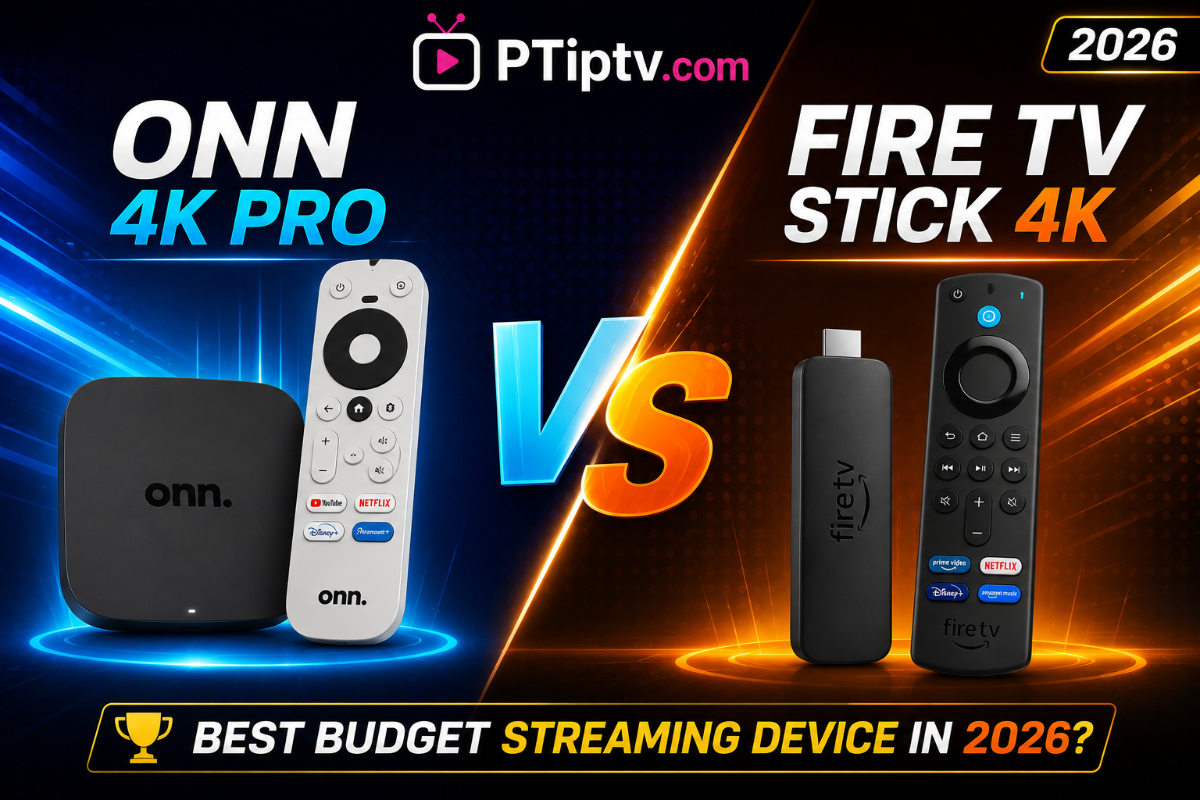
Onn 4K Pro vs. Fire TV Stick 4K: Best Budget Streaming Device in 2026? For users looking to power their home streaming setup without breaking the bank, the sub-$50 price category offers some of the most competitive hardware on the market. Two top contenders dominate this space: Walmart’s Onn Google TV 4K Pro and Amazon’s Fire TV Stick 4K (2nd Gen). While both streaming players deliver fluid 4K HDR playback and support modern video decoders, their hardware layouts, network connectivity options, and operating systems set them apart. In this detailed comparison, we analyze both budget powerhouses across specs, app handling, storage capacity, and real-world performance. Hardware Specs & Feature Comparison Feature / Spec Walmart Onn Google TV 4K Pro Amazon Fire TV Stick 4K (2nd Gen) Operating System Google TV (Android 12/14) Fire OS 8 Form Factor Tabletop Streaming Box / Hub Compact HDMI Dongle RAM / Internal Storage 3GB RAM / 32GB Storage 2GB RAM / 8GB Storage Wired Network Built-in 10/100 Ethernet Port Requires USB OTG Adapter Wireless Connectivity Wi-Fi 6 (802.11ax) Wi-Fi 6 (802.11ax) USB Expansion Built-in USB 3.0 Type-A Port Requires Micro-USB OTG Cable Audio & Video Standards Dolby Vision, Dolby Atmos, AV1 Dolby Vision, HDR10+, Dolby Atmos, AV1 Key Differences Breakdown 1. Storage Capacity & EPG Performance Onn 4K Pro: Equipped with 32GB of internal storage and 3GB of RAM. This expanded storage is a game-changer for media players like TiviMate or XCIPTV, enabling them to store massive TV schedules, channel logos, and video metadata without triggering "out of memory" errors. Fire TV Stick 4K: Comes with 8GB of internal storage. While sufficient for basic app streaming, power users running multiple large playlists may need to clear app cache files periodically. 2. Built-in Ports & External Connectivity Onn 4K Pro: Features a full USB 3.0 Type-A port and a dedicated Ethernet port right on the back of the device. You can plug in a USB flash drive for local recording or direct video playback without buying extra adapters. Fire TV Stick 4K: Uses a traditional stick design that plugs directly into an HDMI port. Expanding storage or adding a wired network connection requires purchasing extra micro-USB splitters and OTG hubs. 3. User Interface & Ecosystem Freedom Onn 4K Pro: Runs a clean, native Google TV interface. Sideloading third-party apps, file explorers, and backup utilities via the Downloader app is fast and straightforward. Fire TV Stick 4K: Features Amazon’s content-focused Fire OS dashboard. While sideloading is fully supported, Amazon’s interface prioritizes sponsored content and requires navigation through Developer Options menus. Frequently Asked Questions (FAQ) Verdict: Which One Should You Buy? Choose the Onn Google TV 4K Pro if: You want 32GB of internal storage and 3GB RAM for heavy media apps and EPG caching. You need a built-in Ethernet port and a full USB 3.0 port for local storage expansion. You prefer a clean Google TV user interface with hassle-free APK sideloading. Choose the Fire TV Stick 4K if: You prefer a hidden dongle form factor behind your wall-mounted TV. You are already deeply invested in the Amazon Prime and Alexa smart home ecosystem. You want high-quality 4K HDR playback in a traditional stick design.
-
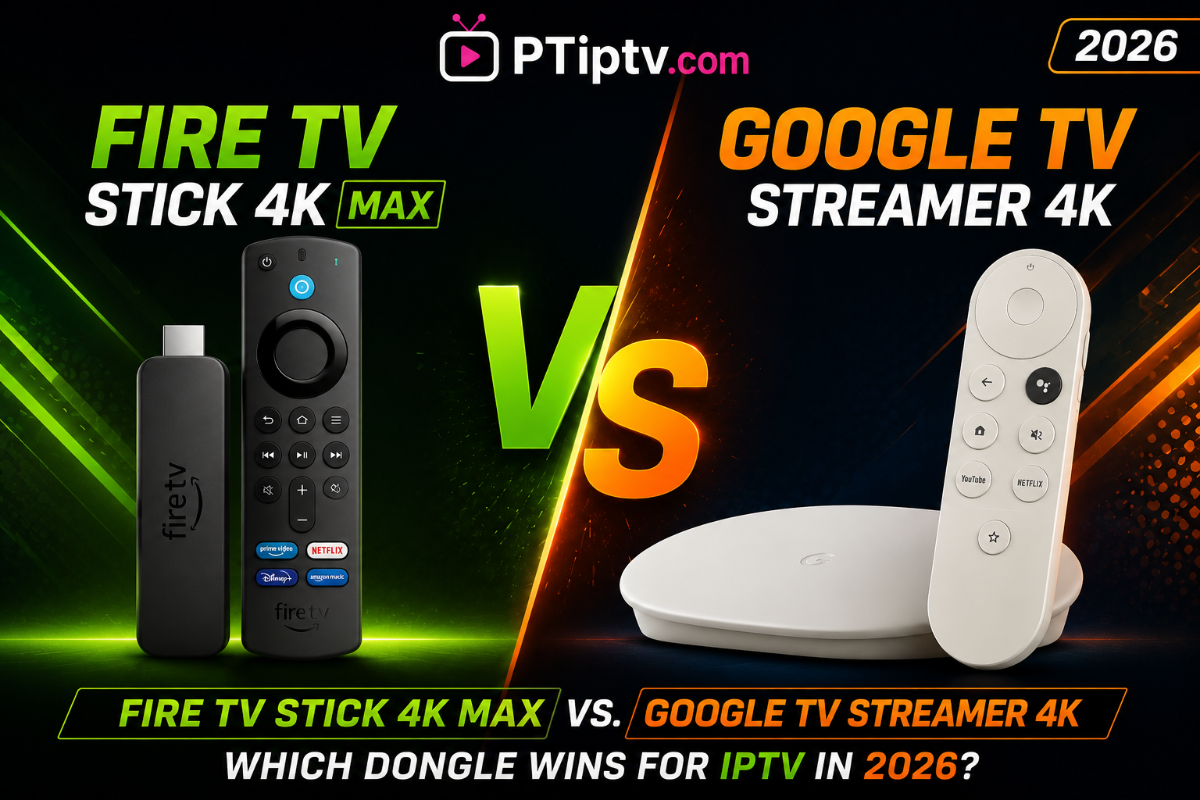
Fire TV Stick 4K Max vs. Google TV Streamer 4K: Which Dongle Wins for IPTV in 2026? When looking for a compact, budget-friendly streaming device to power your live TV and Video-on-Demand (VOD) setup, two giant tech ecosystems dominate the market: Amazon’s Fire TV Stick 4K Max (2nd Gen) and Google’s TV Streamer 4K. While both devices easily plug into your TV’s HDMI port and deliver stunning 4K HDR playback, their underlying operating systems, storage options, and sideloading flexibility cater to completely different user needs. In this detailed 2026 head-to-head comparison, we analyze both devices across hardware performance, app compatibility, networking stability, and overall user experience. Hardware Specs & Connectivity Comparison Feature / Spec Amazon Fire TV Stick 4K Max (2nd Gen) Google TV Streamer 4K Operating System Fire OS 8 Google TV (Android 14) Processor Quad-Core 2.0 GHz Quad-Core Upgraded MediaTek RAM / Internal Storage 2GB RAM / 16GB Storage 4GB RAM / 32GB Storage Wireless Connectivity Wi-Fi 6E (6GHz Band) Wi-Fi 6 + Bluetooth 5.1 Wired Network Micro-USB Adapter Required Built-in Gigabit Ethernet Port Video & Audio Codecs Dolby Vision, HDR10+, AV1, Dolby Atmos Dolby Vision, HDR10+, AV1, Dolby Atmos Sideloading Difficulty Moderate (Requires Developer Mode) Very Easy (Native Play Store Apps) Key Differences Breakdown 1. Operating System & Sideloading Freedom Google TV Streamer 4K: Runs native Google TV based on Android 14. Installing third-party players, file managers, and utility tools via the Downloader app is seamless and free from system restrictions. Fire TV Stick 4K Max: Runs Amazon’s proprietary Fire OS. While sideloading third-party APKs is supported, Amazon has introduced stricter Developer Options menus that require a few extra button presses to enable unknown sources. 2. Network Stability: Wi-Fi 6E vs. Built-in Gigabit Ethernet Google TV Streamer 4K: Features a built-in physical Gigabit Ethernet port on its base unit. Connecting directly to your router via an Ethernet cable guarantees 100% stable connection with zero wireless interference during live sports streams. Fire TV Stick 4K Max: Relies on Wi-Fi 6E technology. If you have a Wi-Fi 6E router, wireless speeds on the 6GHz band are blazingly fast. However, if you prefer a wired cable connection, you must purchase a separate Ethernet OTG adapter. 3. Storage Space & EPG Performance Google TV Streamer 4K: Comes with 32GB of internal storage and 4GB RAM. This extra memory allows custom players (like TiviMate, OTT Navigator, or XCIPTV) to cache massive EPG guides and VOD poster metadata without memory crashes. Fire TV Stick 4K Max: Features 16GB of storage and 2GB RAM. While double the storage of older models, running multiple large playlists simultaneously can occasionally fill up system memory faster. Verdict: Which One Should You Buy? Choose the Google TV Streamer 4K if: You want a built-in Ethernet port for maximum wired connection stability. You need 32GB of storage and 4GB RAM for large EPG databases and app caching. You prefer a clean, ad-free Google TV interface with unrestricted sideloading. Choose the Fire TV Stick 4K Max if: You want a compact dongle that hides completely behind your wall-mounted TV. You already have a high-speed Wi-Fi 6 or Wi-Fi 6E router. You are looking for high-end 4K performance at a lower price point. Frequently Asked Questions (FAQ) Q1: Can I install TiviMate on both the Fire TV Stick 4K Max and Google TV Streamer? A: Yes, both devices support TiviMate. On Google TV Streamer, you can download it directly or sideload it effortlessly. On the Firestick, you can easily install it using the Downloader app. Q2: Does the Google TV Streamer 4K come with a built-in Ethernet port? A: Yes! Unlike previous Chromecast dongles, the new Google TV Streamer 4K includes a native Gigabit Ethernet port built right into the desktop unit. Q3: Which device is faster for channel switching (zapping speed)? A: Both devices feature fast processors and handle 4K 60fps streams smoothly. However, the Google TV Streamer’s 4GB RAM gives it a slight edge when navigating large EPG playlists. Q4: Do both devices support 4K AV1 video decoding? A: Yes, both the Fire TV Stick 4K Max (2nd Gen) and Google TV Streamer 4K include hardware decoding for the modern AV1 video codec, ensuring efficient bandwidth usage. Q5: Can I expand internal storage using a USB drive? A: Yes. On Google TV Streamer, you can attach a USB-C hub with storage drives. On the Firestick 4K Max, you can use a micro-USB OTG cable to connect external USB drives.
-
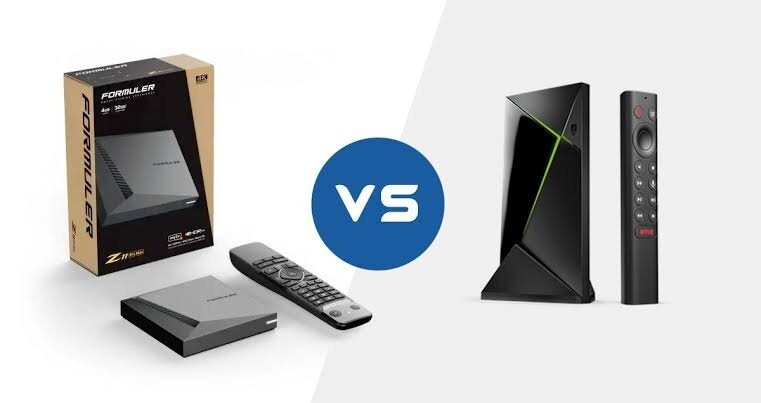
NVIDIA Shield TV Pro vs. Formuler Z11 Pro Max: Which Should You Buy in 2026? When shopping for a high-end streaming box, two flagship devices consistently top the recommendations: the NVIDIA Shield TV Pro and the Formuler Z11 Pro Max. While both deliver exceptional 4K performance, they target fundamentally different types of users. In this head-to-head comparison, we analyze their processing power, streaming capabilities, app compatibility, and unique ecosystem features to help you decide which device belongs in your setup. Hardware & Performance Comparison Feature / Spec NVIDIA Shield TV Pro Formuler Z11 Pro Max Processor NVIDIA Tegra X1+ Realtek RTD1319C RAM / Storage 3GB RAM / 16GB Storage 4GB DDR4 RAM / 32GB eMMC Operating System Android TV OS Android 11 Network Gigabit LAN, Wi-Fi 5 (802.11ac) Gigabit LAN, AX 2x2 (Wi-Fi 6) Video Codecs H.265, VP9, Dolby Vision, HDR10 AV1, H.265, VP9, HDR10+ Target Audience Power Users, Home Theater & Gaming Dedicated Live TV & Portal Streaming Key Differences Breakdown 1. The IPTV Experience: MYTVOnline 3 vs. Standard Android Apps Formuler Z11 Pro Max: Features the proprietary MYTVOnline 3 (MOL3) app. It offers the fastest EPG loading, seamless multi-screen viewing, recording features, and single-click portal management directly out of the box. NVIDIA Shield Pro: Relies on third-party Android TV applications (such as TiviMate or Perfect Player). While these apps run fast on the Shield, they require manual installation and configuration. 2. Picture Processing & Audio Standards NVIDIA Shield Pro: Features class-leading AI 4K Upscaling. It converts standard 720p or 1080p live broadcasts into crisp 4K quality in real time. It also natively supports lossless passthrough for Dolby TrueHD, DTS:X, and Atmos. Formuler Z11 Pro Max: Focuses on modern video codec efficiency with native AV1 decoding, reducing bandwidth usage for high-bitrate 4K streams. However, it lacks advanced AI upscaling. 3. App Ecosystem & Netflix Certification NVIDIA Shield Pro: Fully certified by Netflix, Prime Video, and Disney+, running official 4K HDR streams effortlessly. Formuler Z11 Pro Max: Primary OS is optimized for custom APKs and live media players. Official VOD streaming services may be limited to lower resolutions due to licensing restrictions. Verdict: Which One Should You Choose? Buy the NVIDIA Shield TV Pro if: You have an AV receiver and want full Dolby Atmos / DTS:X audio passthrough. You watch a lot of lower-resolution content and want AI 4K upscaling. You want an all-in-one media server (Plex Server support) and official 4K streaming apps. Buy the Formuler Z11 Pro Max if: Your main focus is Live TV, EPG navigation, and Portal services. You want the MYTVOnline 3 interface without configuring third-party players. You require Wi-Fi 6 connectivity and native AV1 codec decoding. Frequently Asked Questions (FAQ) Q1: Can I use TiviMate on the Formuler Z11 Pro Max? A: Yes, you can install third-party apps like TiviMate on the Formuler Z11 Pro Max. However, most users choose Formuler specifically to use its built-in MYTVOnline 3 software. Q2: Does the Formuler Z11 Pro Max support Wi-Fi 6? A: Yes, the Formuler Z11 Pro Max features a dual-band Wi-Fi 6 (802.11ax) wireless card, whereas the NVIDIA Shield TV Pro only supports Wi-Fi 5 (802.11ac). Q3: Which box is better for home theater sound systems? A: The NVIDIA Shield TV Pro is superior for home theater audiophiles because it natively supports full passthrough for high-end codecs like Dolby TrueHD, DTS:X, and DTS-HD MA to AV receivers. Q4: Is the NVIDIA Shield TV Pro still worth buying in 2026? A: Absolutely. Thanks to its powerful GPU and AI Upscaling chip, the Shield TV Pro remains one of the fastest and most capable 4K Android TV devices on the market. Q5: Do both devices support external hard drives for recording live TV? A: Yes, both devices allow you to connect external USB drives or map local Network Attached Storage (NAS) paths to record live TV broadcasts and schedule timers.
-
Top 5 Best Streaming Devices & TV Boxes for IPTV in 2026 (Buyer's Guide) When it comes to enjoying smooth, high-bitrate live television and Video-on-Demand (VOD), having a powerful hardware streaming device is just as important as your internet connection. Low-tier smart TV apps often suffer from memory leaks, slow EPG loading, and buffering during high-traffic live events. Dedicated streaming devices feature specialized video decoders, robust Wi-Fi/Ethernet hardware, and optimized operating systems designed to handle demanding IPTV players smoothly. In this comprehensive 2026 guide, we review the top 5 streaming devices and TV boxes currently available, breaking down their hardware specs, sideloading capabilities, and real-world performance. 1. Formuler Z12 Ultra / Z11 Pro BT1 Edition Hardware Spec Details Operating System Android 12 Storage / RAM Up to 128GB eMMC / 4GB DDR4 Connectivity Gigabit LAN, Dual-Band Wi-Fi, Bluetooth 5.2 Best Feature Native MYTVOnline 3 Application Integration Formuler continues to dominate the dedicated streaming market. Unlike generic Android TV boxes, Formuler devices are engineered from the ground up specifically for live TV lovers. Key Highlights: MYTVOnline 3 Engine: Provides the fastest EPG parsing, multi-screen viewing, and seamless track/subtitle switching in the industry. AV1 Codec Support: Future-proof hardware decoding for AV1 video streams, saving up to 30% bandwidth without sacrificing visual quality. Premium Bluetooth Remote: Advanced ergonomics with dedicated shortcut keys for quick channel navigation. 2. NVIDIA Shield TV Pro Hardware Spec Details Operating System Android TV OS Processor NVIDIA Tegra X1+ Audio/Video Dolby Vision, HDR10, DTS:X, Dolby TrueHD Passthrough Best Feature AI 4K Upscaling & Lossless Audio Passthrough Despite being in the market for several years, the NVIDIA Shield TV Pro remains an absolute beast for high-end home theater setups. Key Highlights: Real-time AI Upscaling: Sharpens 720p and 1080p live streams to near-native 4K clarity. Lossless Audio Passthrough: Supports DTS:X, Dolby TrueHD, and Atmos directly to AV receivers. Unrestricted Sideloading: Native Android TV platform allows full access to APK installation without aggressive operating system blocks. 3. Google TV Streamer 4K Hardware Spec Details Operating System Google TV (Android 14) Storage / RAM 32GB / 4GB Networking Built-in Gigabit Ethernet & Wi-Fi 6 Best Feature Sleek Desktop Form Factor & Built-in Ethernet Replacing the classic Chromecast dongles, the Google TV Streamer 4K brings a dedicated tabletop design with a built-in Ethernet port for maximum connection stability. Key Highlights: Gigabit Ethernet Port: Essential for eliminating Wi-Fi interference during high-bitrate 4K live sports. Expanded Storage: Upgraded internal storage prevents out-of-memory errors when loading massive EPG databases. Sideloading Made Easy: Simple integration with Downloader apps and file managers directly from the Play Store. 4. Amazon Fire TV Stick 4K Max (2nd Gen) Hardware Spec Details Operating System Fire OS Storage / RAM 16GB / 2GB Connectivity Wi-Fi 6E Support Best Feature Ultra-Fast Wireless Speed on 6GHz Band Amazon's Fire TV devices offer top-tier video playback hardware at a highly competitive price point. Key Highlights: Wi-Fi 6E Integration: Delivers fast wireless throughput on 6GHz bands for buffer-free streaming. Dolby Vision & Atmos Support: Full HDR10+ and Dolby certifications for cinematic VOD streaming. Sideloading Note: Requires enabling Developer Options to install third-party player applications. 5. Onn Google TV 4K Pro Hardware Spec Details Operating System Google TV Storage / RAM 32GB / 3GB Connectivity Wi-Fi 6 + Ethernet Port Best Feature Premium Features at a Low Price Point Walmart’s Onn 4K Pro has taken the budget category by storm, offering specs usually reserved for premium devices. Key Highlights: Unbeatable Price: Offers hands-free voice control, an Ethernet port, and 32GB storage at half the cost of competitors. Clean Google TV Interface: Direct access to Android ecosystem apps with simple sideloading procedures. Complete Hardware Comparison Matrix Device Model Operating System Storage / RAM Standout Feature Sideloading Ease Formuler Z12 / Z11 Android 12 Up to 128GB / 4GB Native MYTVOnline 3 App Extremely Easy NVIDIA Shield Pro Android TV OS 16GB / 3GB AI 4K Upscaling & Atmos Extremely Easy Google TV Streamer Google TV (Android 14) 32GB / 4GB Built-in Gigabit Ethernet Very Easy Fire TV Stick 4K Max Fire OS 16GB / 2GB Wi-Fi 6E Performance Moderate (Dev Mode) Onn 4K Pro Google TV 32GB / 3GB Best Ultra-Budget Hardware Very Easy Quick Buyer Recommendations Your Primary Streaming Need Recommended Choice Ultimate Live TV Experience & Portal Navigation Formuler Z12 / Z11 Series Home Theater Audio & AI Image Upscaling NVIDIA Shield TV Pro Official Google OS & Wired Cable Connection Google TV Streamer 4K Best Budget Under $50 Onn 4K Pro / Fire TV Stick 4K Max
-
TiviMate vs iMPlayer (2026 Comparison): Which IPTV Player Is Better? When it comes to high-end media playback on Android TV, Google TV, and Amazon Firestick devices, two applications consistently top the recommendations list: TiviMate and iMPlayer. Neither application provides content or channel lists on its own. Instead, both serve as premium management engines designed to turn messy server streams into clean, organized, cable-like electronic program guides (EPG). While both apps target home theater enthusiasts, they take vastly different approaches to user interface design, playback features, and ecosystem accessibility. In this comprehensive comparison, we break down how TiviMate and iMPlayer compare in 2026 to help you choose the right player for your living room setup. 1. User Interface & Navigational Experience TiviMate: The Minimalist Cable Box UI TiviMate’s signature strength lies in its television-first interface. Designed strictly for TV screens navigated by a standard remote control, TiviMate delivers an interface that feels identical to high-end satellite receivers. Fluid Zapping: Channel preview panels allow you to browse live categories while the current channel keeps playing seamlessly in the background. Clutter-Free EPG: Clean timeline design with customizable grid heights, fonts, and color accents. Simplicity: High focus on speed and minimal menu clutter, making it easy for non-tech-savvy family members to use. iMPlayer: The Feature-Rich Customization Hub iMPlayer adopts a bolder, highly modular interface packed with quick-action panels. Multiple Layout Modes: Choose between classic EPG grid view, modern VOD poster wall, or card-style category layouts. Deep Visual Customization: Allows extensive personalization of background transparencies, button mappings, and status bar displays. Rich VOD Presentation: Offers detailed media cards featuring IMDb ratings, actor cast lists, and trailer previews for movies and series. 2. Advanced Playback & Technical Features Both apps handle 4K HDR playback and hardware decoding effortlessly, but their advanced feature sets appeal to different streaming habits. Feature Comparison Matrix Feature Aspect TiviMate IPTV Player iMPlayer IPTV Multi-Screen Support Up to 4 Live Streams Up to 4 Live Streams Background Recording Local USB / Local Storage / NAS Local USB / Cloud Recording Multi-Playlist Support Yes (Merge EPGs) Yes (Merge Playlists) Cloud Management Manual Backup / Restore Web-based Cloud Console Platform Availability Android TV / Fire OS Only Android TV, Mobile & iOS Key Technical Standouts: iMPlayer Web Management: iMPlayer features a Web Cloud Console. You can log in via a browser on your laptop or phone to manage playlists, edit channel groups, and adjust settings without typing with a TV remote. TiviMate Scheduled DVR: TiviMate features a rock-solid background recording engine that saves live broadcasts directly to connected USB drives or local network-attached storage (NAS) devices. 3. Platform Availability & Multi-Device Flexibility TiviMate is engineered exclusively for Android TV, Google TV, and Amazon Fire OS devices. It is not designed or optimized for touch-screen smartphones or tablets. iMPlayer offers broader device support, featuring dedicated interfaces optimized for both Android TV boxes and touch-screen devices (Android mobile and iOS). 4. Pros & Cons Comparison TiviMate IPTV Player 👍 Pros: Ultra-fast channel switching speed with zero menu stutter. Industry-leading, intuitive EPG design. Reliable background scheduled recording options. 👎 Cons: No web console management; setup must be done on the device. Restricted to TV devices (not optimized for phones/tablets). iMPlayer IPTV 👍 Pros: Remote Web Cloud Management for easy playlist editing. Superior Video-on-Demand (VOD) poster layouts with IMDb metadata. Cross-platform support across TV and mobile hardware. 👎 Cons: Settings menu can feel overwhelming for beginners. Marginally higher hardware requirement to run all visual effects smoothly. Final Verdict: Which One Should You Choose? Choose TiviMate if: You want a clean, fast, cable-like interface for your main living room TV and prioritize channel zapping speed and local recording stability. Choose iMPlayer if: You want to manage your playlists remotely via a computer browser, enjoy rich movie poster layouts, or need app synchronization across both TV and mobile devices.
-
Top 5 Best IPTV Apps for Android TV & Firestick (2026 Comparison) The landscape of media streaming applications has evolved drastically. Gone are the days when users had to settle for clunky, slow, and basic media players to watch live television. Today, modern IPTV applications offer feature-packed interfaces that rival—and often surpass—commercial cable and satellite set-top boxes. However, choosing the right application depends on your specific needs: Are you looking for ultra-fast channel zapping, multi-screen viewing for live sports, or seamless cloud synchronization across multiple devices? In this comprehensive review, we evaluate the Top 5 IPTV Applications for Android TV and Firestick in 2026, focusing strictly on their features, user interface performance, playback engines, and pros/cons. 1. TiviMate IPTV Player: The Undisputed Gold Standard For power users on Android TV and Fire OS, TiviMate remains the premier media player on the market. Its design language closely mirrors modern cable box interfaces, providing a fluid and intuitive experience. Key Features & Highlights Modern TV-First UI: Seamlessly designed specifically for television screens and remote control navigation. Multi-View Mode: Watch up to 4 live channels simultaneously on a single split-screen. Advanced EPG Management: Supports multiple EPG sources, custom channel sorting, and automated guide updates. Catch-Up & Recording: Built-in scheduled recording to local or network-attached storage (NAS). 2. OTT Navigator: The Power User’s Swiss Army Knife If TiviMate focuses on minimalist elegance, OTT Navigator focuses on sheer feature density and deep technical customization. It is built for enthusiasts who want total control over video processing and media metadata. Key Features & Highlights Media Studio Filters: Real-time hardware adjustments for video color, contrast, audio equalizer, and aspect ratios. Up to 9 Multi-Screens: Power hardware can drive up to 9 small video feeds at once. Dynamic Category Grouping: Automatically merges playlists and sorts content by resolution, language, or genre. Adaptive Buffering: Advanced background buffer allocation that dynamically adjusts to connection speeds. 3. IPTV Smarters Pro: The Multi-Platform Classic IPTV Smarters Pro continues to be one of the most widely recognized media apps across all operating systems due to its cross-platform availability and straightforward layout. Key Features & Highlights Cross-Platform Uniformity: Available on Android, iOS, Windows, macOS, Samsung Tizen, and LG webOS. Master Search Engine: Universal search bar that scans across live channels, VOD movies, and series simultaneously. Built-in Speed Test: Integrated utility tool to test bandwidth speeds directly inside the application. Parental Controls: Granular PIN protection for adult or restricted channel categories. 4. IMPlayer: The Feature-Rich IPTV & VOD Engine IMPlayer has quickly risen in popularity as a direct competitor to TiviMate, offering a hyper-customizable interface with unique networking and cloud management capabilities. Key Features & Highlights Cloud Management Console: Remotely configure your playlists and favorites from a web browser without touching the TV remote. Advanced VOD Layout: Pulls high-resolution movie posters, trailer links, and IMDb ratings for VOD libraries. Built-in Catch-Up Player: Slick timeline-based playback for reviewing past broadcasts. Custom Themes: Extensive UI customization with custom color schemes and typography options. 5. XCIPTV Player: Simple, Lightweight, and Clean For users on budget streaming sticks with limited RAM, heavy applications can cause system lag. XCIPTV Player offers a lightweight, card-based dashboard that places minimal stress on hardware components. Key Features & Highlights Minimalist Dashboard: Large, clear action tiles for Live TV, Movies, Series, and Catch-up. Dual Built-in Players: Integrated ExoPlayer and VLC Player engines with automatic fallback switching. Low RAM Footprint: Highly optimized codebase that prevents app crashes on 1GB/2GB RAM streaming sticks. Native ExoPlayer Integration: Instant playback with excellent hardware codec support. Feature Comparison Matrix Application Best For Multi-View Support Cross-Platform Cloud Sync UI Complexity TiviMate Premium Cable Experience Yes (Up to 4) Android TV / Fire OS Only Local / Backup Medium OTT Navigator Advanced Customization Yes (Up to 9) Android TV / Mobile No High IPTV Smarters Multi-Device Flexibility No Android, iOS, Smart TVs No Low IMPlayer Remote Management & VOD Yes (Up to 4) Android TV / Fire OS Yes (Web Console) Medium XCIPTV Low-End/Budget Hardware No Android TV / Mobile No Very Low Frequently Asked Questions (FAQ)
-
OTT Navigator IPTV Guide: How to Setup, Customize, and Fix Lag While applications like TiviMate and IPTV Smarters dominate everyday IPTV conversations, power users who demand total control over their media rendering often turn to OTT Navigator. Built with extreme flexibility in mind, OTT Navigator is one of the most feature-rich media players available for Android TV, Google TV, and Amazon Firestick devices. From granular buffer control and multi-provider switching to custom video studio filters and automatic channel grouping, this app has it all. In this ultimate tutorial, we will walk you through setting up OTT Navigator, optimizing its playback settings, and fixing common stream issues. 1. Why Choose OTT Navigator over Other IPTV Apps? Before jumping into the setup, here are the key features that make OTT Navigator stand out: Media Studio Filters: Apply real-time hardware color correction, sharpness adjustments, and custom aspect ratios directly to incoming video feeds. Asynchronous EPG Sync: Downloads and processes channel guides in the background without freezing the video player. Picture-in-Picture (PiP) & Multi-View: Watch up to 9 live video channels simultaneously on high-performance streaming boxes. Category Filtering: Easily merge multiple provider playlists and auto-sort channels by language or resolution. 2. Step-by-Step Setup Guide (Xtream Codes & M3U) Setting up OTT Navigator is quick once you have your subscription details. Step 1: Add Your Subscription Provider Open OTT Navigator on your Android TV or Firestick device. On first launch, click Add Provider. Select your connection type: Xtream Codes API: Enter your Server URL, Username, and Password. M3U Playlist: Enter the direct M3U URL provided by your subscription service. Click Apply. The application will instantly parse your live TV, VOD movies, and TV series categories. Step 2: Configure Electronic Program Guide (EPG) OTT Navigator usually extracts EPG data automatically from your provider's credentials. However, if program names are missing: Long-press the Select button on your remote control to open the main side menu. Navigate to Settings > Provider > EPG. Set the EPG Read Frequency to 12 Hours and enable "Download via background thread" to ensure zero menu lag. 3. Optimization Settings for Zero-Buffering & Smooth Playback To ensure your streams play seamlessly without freezes or micro-stutters, apply these recommended playback parameters: [Incoming Stream] ---> [Hardware Decoding (HW+)] ---> [Buffer Allocation: Medium] ---> Smooth Playback Setting Parameter Default State Recommended Change Purpose Decoder Engine Software (SW) Hardware (HW or HW+) Forces the GPU chip to handle 4K H.265 streams. Network Buffer Auto Medium (3 to 5 Seconds) Creates a data cushion against temporary Wi-Fi drops. Channel Zapping Standard Fast Switching Pre-buffers adjacent channels in the list for instant switching. Stream Restarter Disabled Enabled (3 Retries) Automatically reconnects if your ISP drops the feed momentarily. 4. How to Create Custom Favorites & Multi-View Screens Grouping Favorite Channels To keep your main screen clutter-free: Highlight any channel in your guide. Press and hold the OK/Select button on your remote until the context menu pops up. Select "Add to Starred/Favorites" or assign it to a custom user folder. Setting up Multi-View Screen While playing a channel, press Down on your remote to view the player controls. Click the Multi-View icon. Select additional active streams from your channels list to view multiple broadcasts side by side (great for watching simultaneous live sports events). Frequently Asked Questions (FAQ) If you are having trouble mapping your custom player codecs or configuring your EPG inside OTT Navigator, leave a reply in the thread below with your device details and our community will assist you!
-
How to Set Up MYTVOnline 3 on Formuler: Complete Optimization Guide When it comes to high-end, dedicated IPTV streaming hardware, Formuler devices (such as the Z11 Pro, Z11 Pro Max, and Z Mini) stand in a league of their own. What truly elevates Formuler above standard Android boxes is its proprietary software: MYTVOnline 3 (MOL3). Unlike third-party applications that require tedious mapping, MYTVOnline 3 offers a seamless, cable-box-like interface with built-in recording, Timeshift, Picture-in-Picture (PiP), and universal search. In this comprehensive tutorial, we will walk you through setting up MYTVOnline 3 from scratch, adding your subscription portals, and configuring key settings for a fast, buffer-free streaming experience. 1. Connecting Your Subscription to MYTVOnline 3 MYTVOnline 3 supports all major streaming protocols, including Stalker Portal, Xtream Codes API, and M3U Playlists. Option A: Connecting via Xtream Codes API (Recommended) Open MYTVOnline 3 from your Formuler home screen. Press the Menu button (three lines) on your remote and navigate to Content > Sources > Add Portal. Select Xtream Codes Login. Fill in your details: Portal Name: Any name you like (e.g., Primary IPTV). Server URL: Paste the host portal URL provided by your service. Username & Password: Enter your active line credentials. Click Connect. The app will fetch your live channels, EPG, VOD, and Series databases. Option B: Connecting via Stalker MAC Address If your provider uses MAC Address authentication: Provide your Formuler device’s MAC Address (found under Settings > Device Info or on the bottom sticker) to your provider. In MYTVOnline 3, go to Content > Sources > Add Portal. Select MAC / Stalker Portal. Enter your Portal Name and Portal URL, then click Connect. 2. Unlocking MYTVOnline 3 Advanced Features MYTVOnline 3 comes packed with advanced tools that set it apart from standard Android TV players. Here is how to configure them for peak performance: [Formuler Hardware Engine] ---> [MYTVOnline 3] ---> [USB DVR / Timeshift Enabled] | v [Pause Live Sports & Simultaneous Background Recording] Enabling Timeshift & Live TV Recording To pause, rewind, or record live TV feeds, you need to dedicate external storage: Plug a high-speed USB 3.0 flash drive or external SSD into your Formuler box. Go to Settings > Storage and format the drive for DVR use. Open MYTVOnline 3, go to Settings > DVR & Timeshift, and set your external drive as the target path. Toggle Auto Timeshift ON. You can now pause live sports broadcasts and rewind missed plays instantly. Using Picture-in-Picture (PiP) MYTVOnline 3 allows you to watch two live events on the screen simultaneously—perfect for matchdays: While watching a live channel, press the OK or Menu button. Select the Picture-in-Picture (PiP) icon. Choose a secondary channel from your guide to play in a floating side window. 3. Recommended Performance & EPG Settings To avoid lag when loading massive playlists containing over 20,000 channels, apply these optimization tweaks: Setting Parameter Default Value Recommended Optimization Channel Zapping Speed Normal Fast / Ultra-Fast (Pre-loads stream buffer) EPG Update Interval On Launch Every 12 Hours (Saves bandwidth & memory) Channel Grouping Default Hide Unwanted Categories (Boosts menu responsiveness) Global Search Disabled Enabled (Searches across Live TV & VOD instantly) 4. How to Backup and Export Your Setup One of the best additions in MYTVOnline 3 is the ability to export your portal data and custom favorites: Go to Settings > Backup & Restore. Save your layout to a USB drive or generate a QR Code to easily migrate your settings to another Formuler box or the mobile MYTVOnline+ app. Frequently Asked Questions (FAQ) If you are facing issues connecting your portal or setting up DVR recording on your Formuler box, leave a reply below with your exact Formuler model and firmware version, and our community will assist you!
-
How to Update and Recover Infomir MAG Boxes: Complete USB Firmware Guide Infomir’s MAG boxes (such as the MAG 254, 322, 520, and 540) are renowned for their rock-solid performance when running portal-based streaming services. However, handling firmware updates on these dedicated Linux boxes can sometimes feel like walking a tightrope. Updating your MAG box to the wrong software version can lead to blocked middleware portals, infinite boot loops, or the dreaded "Page Loading Error" screen. On the flip side, running severely outdated firmware leaves your hardware vulnerable to playback bugs and missing audio codecs. In this step-by-step guide, we will walk you through how to safely update your MAG box, choose the right firmware release, and perform a full USB hardware recovery if your device becomes unbootable. 1. Updating Options: System Settings vs. Bootloader USB There are two primary ways to update an Infomir MAG device. Understanding when to use each method will save you from software headaches. Method A: Network Update (HTTP / System Settings) This is the easiest method and can be triggered directly from the inner system menus. Power on your MAG box without an active portal link (or press the Setup key on your remote while booting). Navigate to Inner Portal > System Settings > Software Autoupdate. Select Update manually (F2 button on your remote). Select the latest stable release and wait for the box to download and reboot. Method B: Manual USB Flash Update (Recommended for Unstable Boxes) If your network update fails or hangs at 0%, updating via a FAT32-formatted USB drive is the most reliable alternative. Download the official firmware image file (imageupdate) specifically designed for your exact model number from Infomir's official archive. Format a USB flash drive to FAT32. Create a folder named magXXXX on the USB drive (replace XXXX with your box model, e.g., mag322 or mag520). Place the imageupdate file inside that folder. Insert the USB drive into the rear USB port of the MAG box. Access the inner setup menu, go to System Settings > Software Autoupdate, set the source to USB, and initiate the flash process. 2. Emergency USB Hardware Recovery (NAND Flashing) If your MAG box gets stuck on a black screen, freezes on the "Infomir" boot logo, or experiences continuous boot loops, the inner menu will not load. You must perform an emergency hardware recovery using the BIOS Boot Menu. [Powered Off MAG Box] ---> [Hold Menu Button on Remote] ---> [Plug in Power Cable] | v [Enter BIOS Blue Screen] ---> [Upgrade Mode: USB] ---> [System Reflashed & Restored] Step-by-Step Hardware Recovery: Disconnect the power cable from your MAG box. Prepare your USB drive with the correct imageupdate file structure as described in Method B. Point your MAG remote at the box, press and hold the MENU button, and plug the power cable back in. Keep holding the MENU button until a blue BIOS screen appears on your TV. Use your remote arrow keys to navigate to Upgrade Mode and press Right Arrow to select USB Drive. Select Log & Upgrade and press OK. The box will scan the USB drive, flash the clean firmware onto the internal NAND storage, and automatically reboot into its factory state. 3. Quick Reference: Troubleshooting MAG Flash Errors Error Message on Screen Underlying Cause Quick Fix Solution "Wrong Image Structure" Folder name or file format mismatch. Verify the folder is named correctly (mag322, mag520) and contains the raw imageupdate file. "File Not Found" Flash drive file system incompatible. Reformat your USB drive to FAT32 using a 4096-byte allocation unit size. "Access Denied / Blocked" Portal signature mismatch. Downgrade to an earlier public firmware release via the USB BIOS method. Frequently Asked Questions (FAQ) If your MAG box is stuck in a boot loop or refusing to read your USB drive during recovery, reply below with your exact model and current BIOS version, and our forum team will help you fix it!
-
How to Import IPTV Playlists to Enigma2: Complete Bouquet Setup Guide For satellite enthusiasts, Enigma2 receivers (such as Vu+, Zgemma, or Dreambox) represent the absolute peak of home entertainment customizability. Running powerful open-source firmware like OpenATV, OpenPLi, or Black Hole, these devices allow you to seamlessly blend traditional satellite channels with modern IPTV streams. However, adding thousands of live channels, movies, and TV series into Enigma2 can quickly become a nightmare if done incorrectly. Loading a raw M3U text file directly into your system memory will freeze your receiver's processor. In this step-by-step guide, we will show you how to correctly import your IPTV playlist into native Enigma2 Bouquets (channel groups) using the most efficient and lightweight tools available. 1. M3U vs. Native Enigma2 Bouquets: Why the Method Matters Before installing plugins, it is important to understand how Enigma2 handles media data. Raw M3U Playlists: Downloading an M3U file forces the receiver to parse thousands of links at once whenever you open the channel list. This consumes massive amounts of RAM and leads to sluggish menu performance or system crashes. Native TV Bouquets: Converting your playlist into Enigma2 bouquet files breaks down the content into clean, categorized folders (e.g., Sports, Documentaries, VOD Movies). Your receiver treats these streams exactly like regular satellite channels, allowing ultra-fast channel zapping using your standard remote control. 2. Option A: Using XStreamity (Best for UI & VOD) XStreamity is currently one of the most popular and visually appealing IPTV plugins for Enigma2. It offers a sleek dashboard similar to modern smart TV apps. How to Install and Configure XStreamity: Connect your Enigma2 box to your local home network. Download the latest .ipk or .deb file for XStreamity on your computer. Open an FTP client (such as FileZilla) and transfer the file to the /tmp folder on your Enigma2 box. On your receiver remote, go to Menu > Setup > Software Management > Install Local Extensions. Select the /tmp folder, install the plugin, and restart your Enigma2 user interface (GUI). Open XStreamity from your Plugins menu, click Add Playlist, and enter your Xtream Codes API details (Server URL, Username, and Password). 3. Option B: Using JediMakerXtream (Best for Native Channel Lists) If you prefer your IPTV channels to integrate directly into your main satellite channel list without opening a separate app interface, JediMakerXtream (JMX) is the tool to use. Step-by-Step Setup: Install JediMakerXtream via your image's built-in plugin feed (Plugins > Green Button / Download Plugins > Extensions). Launch the plugin and select Playlists > Add Playlist. Choose Xtream Codes and input your subscription details. Go to Bouquet Selection: Here you can uncheck categories you don't watch (e.g., foreign language streams) to keep your system lightweight. Click Create Bouquets. The plugin will generate structured channel groups directly in your native TV guide. 4. Troubleshooting Common Enigma2 IPTV Issues Common Problem Root Cause Easy Fix Black Screen (No Video or Audio) Missing video stream decoders. Install ServiceApp plugin and switch the default player from GStreamer (4097) to exteplayer3 (5002). Missing EPG Data System clock or EPG importer unsynced. Install EpgImport plugin, assign your IPTV source, and schedule an automatic daily update. Box Freezes During Import Playlist contains too many items for RAM. Deselect VOD/Series categories during setup and load Live TV only. Frequently Asked Questions (FAQ) If you are having trouble finding the /tmp directory via FTP or your ServiceApp settings aren't switching properly, post your image version (OpenATV, OpenPLi, etc.) in the comments below and our forum members will guide you through!
-
MAG vs Enigma2 for IPTV: Which Linux Box is Best for Streaming? While Android TV boxes dominate the mainstream streaming market, pure media enthusiasts and long-time IPTV users often swear by Linux-based hardware. When it comes to dedicated Linux boxes, two legendary ecosystems stand out: Infomir’s MAG devices and Enigma2 open-source receivers. Both options offer incredible stability and hardware-level video decoding, but they target completely different types of users. If you are struggling to decide between the plug-and-play simplicity of a MAG box or the ultimate customization of an Enigma2 satellite/IPTV receiver, this comprehensive guide will break down the differences, pros, cons, and performance metrics. 1. MAG Boxes: The King of Plug-and-Play IPTV Manufactured by Infomir, MAG boxes (like the MAG 520 or 540) are closed-ecosystem Linux devices designed for one specific purpose: running IPTV portals flawlessly. Key Features and Strengths Stalker Portal Protocol: MAG boxes are famous for using the Stalker/Ministra portal system. Instead of messing with long M3U URLs, you simply register your device's unique MAC Address with your provider and enter a portal URL. True Hardware Integration: Because the software is lightweight and closed, the device boots up directly into your channel grid. There are no background OS tasks to freeze your stream. Remote Control Friendly: The interface is built purely for traditional remote controls, offering ultra-fast channel zapping speeds that feel identical to old-school satellite television. The Drawbacks Zero Apps: You cannot install Android apps like Netflix, Kodi, or YouTube Mobile. Strict Security: Modern MAG firmware updates heavily restrict unverified custom portals, meaning you must ensure your IPTV provider is fully compatible. 2. Enigma2 Boxes: The Ultimate Customization Engine Enigma2 boxes (such as Vu+, Zgemma, or Dreambox) are open-source Linux satellite and cable receivers that have evolved to support highly advanced IPTV setups. Key Features and Strengths Total Customization: Running on images like OpenATV or OpenPLi, an Enigma2 box allows you to change everything from boot screens to full graphical skins. Hybrid Streaming: You can seamlessly blend over-the-air satellite channels and IPTV streams into the exact same channel bouquet list. XC-Plugin Support: Using plugins like JedimakerXtream or XStreamity, you can import your Xtream Codes API playlist directly into the system's native channel selector. The Drawbacks Steep Learning Curve: Configuring an Enigma2 box requires technical patience. You will often need to use FTP software (like FileZilla) on a PC to transfer files and manage plugins. 3. Direct Comparison: MAG vs. Enigma2 To help you decide which Linux box matches your technical comfort zone, look at this feature breakdown: Feature Infomir MAG Boxes Enigma2 Receivers Operating System Closed Linux (Stalker/Ministra) Open-Source Linux (OpenATV/OpenPLi) Setup Difficulty Very Easy (Plug & Play) Advanced (Requires Plugins/FTP) Connection Method MAC Address + Portal URL M3U / Xtream Codes / Bouquet Files Hardware Flexibility Fixed Specs (Set-Top Box) Modular (Tuner Swapping, Internal HDD) Channel Zapping Speed Ultra-Fast Fast (Depends on Plugin used) 4. Quick Setup Tips for Optimal Linux IPTV Performance Regardless of which box you choose, keep these optimization rules in mind to avoid common errors: For MAG Boxes: Keep Firmware Balanced If your portal is working perfectly, think twice before updating your MAG firmware. Infomir occasionally blocks third-party middleware portals in their latest software versions. If you experience an "Unauthorized" screen after an update, you may need to contact your provider to check portal compatibility. For Enigma2: Use XStreamity for IPTV Do not load raw M3U files containing 50,000 channels directly into your Enigma2 system bouquets, as it will freeze the box engine. Instead, download the XStreamity plugin. It handles massive VOD and Live TV categories smoothly by processing the data asynchronously without lagging your main receiver menus. Frequently Asked Questions (FAQ) If you are trying to map your Enigma2 bouquets or having trouble registering your MAG MAC address, drop a comment below with your exact hardware model, and our forum members will help you out!
-
How to Expand Storage on Android TV Box: Complete USB Setup Guide One of the biggest limitations of modern Android TV boxes—even popular ones like the Chromecast with Google TV or Xiaomi TV Box S—is their severely limited internal storage. Most devices ship with a mere 8GB or 16GB of onboard memory. Once the operating system takes its share, you are often left with less than half of that space for apps, cache, and media files. If you are constantly getting the dreaded "Storage Space Running Out" notification, or if your favorite media players are crashing due to a bloated cache, you don’t need to buy a new box. In this guide, we will walk you through the correct way to expand your Android TV storage using a USB drive or MicroSD card. 1. Internal Storage vs. Removable Storage: What is the Difference? When you plug a USB drive into an Android TV Box, the operating system will ask you how you want to format the drive. Choosing the wrong option is the number one reason users fail to fix their storage issues. Option A: Set up as Device (Internal) Storage This option integrates the USB drive directly into the Android system. The Good: The box treats the USB drive as part of its internal hardware. You can move large apps, games, and heavy system databases (like Kodi or TiviMate data) directly onto it. The Bad: The USB drive becomes encrypted. You cannot unplug it and read it on your PC or smartphone without reformatting it completely. Option B: Set up as Removable (Portable) Storage This option treats the drive like a traditional flash drive. The Good: You can easily unplug it, connect it to a PC to transfer movies or APK files, and plug it back into the TV. The Bad: You cannot install or move applications to this drive. It can only be used to read media files (MP4, MKV, etc.). 2. Step-by-Step Guide to Formating USB as Internal Storage To permanently solve your app storage issues, follow these steps to format your drive as internal memory: Step 1: Insert Your Drive Plug a high-speed USB 3.0 flash drive or a high-end MicroSD card into your device's USB slot. Step 2: Format the Drive A notification should appear saying "USB drive connected." Click on Set up as device storage. If the prompt doesn't show up, go manually to Settings > Device Preferences > Storage. Select your connected USB drive and click Format as device storage. Warning: This process will wipe all existing data on the USB drive. Click Format to confirm. Step 3: Migrate Your Data Once the formatting is complete, the system will ask if you want to "Move data to this storage now." Select Move now. This automatically transfers your existing compatible application data and cache files to the USB drive, immediately freeing up your internal system space. 3. Recommended USB Hardware Specifications Not all USB drives work well with Android TV OS. Using a cheap, slow drive will actually slow down your device's overall speed. Look for these metrics before buying: Feature Minimum Requirement Ideal Choice (Best Performance) USB Generation USB 2.0 USB 3.0 / USB 3.1 Read/Write Speed 30 MB/s 100 MB/s or higher Drive Type Standard Flash Drive SanDisk Ultra / Samsung BAR Plus Storage Capacity 32 GB 64 GB or 128 GB 4. Troubleshooting Common USB Storage Errors The System Says "This USB drive is too slow" If you see this warning during setup, it means your flash drive's read/write speeds are bottlenecking the system. Apps installed on it might take longer to open or experience micro-stutters. The Fix: Switch to a premium USB 3.0 drive, or plug the drive into the Blue USB slot on your Android Box (which indicates a high-speed USB 3.0 port) instead of the black USB 2.0 slot. My Device Doesn't Recognize the USB Drive at All This usually happens if the drive is formatted in a file system that Android doesn't natively support (like NTFS or exFAT on certain uncertified boxes). The Fix: Plug the USB into a computer first, format it to FAT32, and then plug it back into the Android TV Box. Frequently Asked Questions (FAQ) Q1: Can I move any app to the newly expanded USB storage? A: Most apps can be moved automatically. However, some application developers explicitly disable external storage installation for security or stability reasons. System apps pre-installed by the manufacturer cannot be moved either. Q2: What happens if I accidentally unplug the USB drive while the box is on? A: If you formatted it as Internal Storage, unplugging it will cause apps installed on it to crash or disappear from your home screen immediately. Always turn off the box completely before removing the drive. Q3: Can I use an external portable Hard Drive (HDD) instead of a flash drive? A: Yes, but mechanical hard drives have moving parts and are much slower than flash memory. If you want large external storage for apps, a solid-state drive (SSD) or a high-speed USB flash drive is highly recommended. Q4: Why does my 64GB USB drive show less space when formatted? A: Part of the space is automatically reserved by the Android operating system for formatting file directories, system allocation blocks, and running background app caches securely. Q5: Can I use a USB hub if my Android TV box only has one USB port? A: Yes. You can use a powered USB hub to expand your single port into multiple inputs. This allows you to keep one USB dedicated to internal storage expansion while leaving other slots open for air-mice, game controllers, or media playback. If you are facing issues formatting your specific brand of USB drive, or if your Android box is refusing to recognize external storage, post your device model in the replies below and our forum community will help you out!